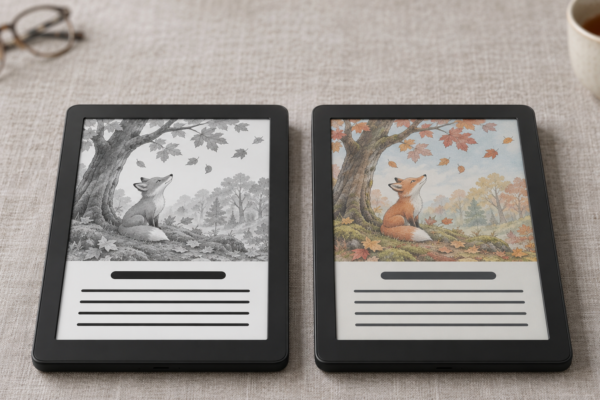
You tap a menu. Nothing seems to happen, so you tap again. Both taps register. Now you’re on the wrong screen. A minute later, the page flashes black. Then you open a PDF and realize you’ll need to zoom in just to read the footnotes. You bought the tablet to make work feel calmer. So far, it’s making you work harder.
If that sounds like your first E Ink tablet, you’re not imagining things. You’re also not necessarily stuck with them.
Some friction is normal. Some of it is fixable. Some of it means you bought the wrong device for the job. The trick is telling those three apart before the return window closes. A week is enough to run useful checks. It is not a deadline for learning to like the tablet.
Before you change a setting: Look up the seller’s exact return deadline, any condition requirements, and whether you’ll pay return shipping or a restocking fee. Write the deadline down and keep the box and accessories. If your window is shorter than a week, compress the tests below into the days you have. Don’t wait out a possible defect, and don’t wait out the deadline.
In this guide
- Why your first E Ink tablet feels slow
- Why your color E Ink tablet may look dimmer than you expected
- The first-week test: put one real job through the tablet
- Is it normal, fixable, a bad fit, or a possible fault?
- Keep it, exchange it, or return it?
- First-week questions that don’t have one universal answer
- The bottom line
Why your first E Ink tablet feels slow
A slow-looking screen and a slow device aren’t the same thing
When you tap something, three separate things happen. The tablet registers the input. The app or system processes it. Then the screen visibly redraws. On an E Ink tablet, any of those steps can be the slow one, and they’re easy to confuse.
That double-tap problem from the opening is a good example. Your first tap registered. The screen just hadn’t caught up yet, so you tapped again. The reverse happens too. A 300-page scanned PDF or a heavy third-party app can take time to process even when the display is doing its job perfectly well.
It’s also why the same device can feel quick in one place and sluggish in another. The built-in pen app may lay down ink almost instantly, while a third-party note app on the same tablet drags. That’s software, not the panel.
So don’t diagnose every delay as a screen problem. Run a simple comparison instead:
- Open the built-in reader and turn a page.
- Open the native notebook and write a line.
- Open the specific app that feels slow and do the thing that bothers you.
In each one, tap once and wait. If only one app misbehaves, investigate that app and its settings before you blame the hardware.
The flash, the faint old page, and the scroll that won’t settle
E Ink draws an image by physically moving charged pigment particles. That’s why it holds a page without power, and also why it can’t redraw the way an LCD does. Partial updates are faster, but they can leave a faint trace of the previous page, known as ghosting. A full refresh clears that trace, and the brief black flash is the screen doing exactly that.
So an occasional flash, or a faint old image that disappears after a refresh, is usually expected behavior. What changes the experience is the kind of content. Turning one static page gives the screen a clean target. Continuously scrolling a busy feed, web page, or chat asks it to chase a moving one, and smearing and leftover traces become much more noticeable.
If you want the full mechanics, Einkopedia explains why E Ink screens flash black and how full refreshes and ghosting are related.
Why your color E Ink tablet may look dimmer than you expected
From Triton to Kaleido 4: what changed when you opened a page
Color E Ink has been “almost there” for more than a decade. Each generation changed what you’d notice when you first opened a page. E Ink’s own history of color ePaper covers the early milestones.
- Triton (introduced in 2010). Triton added a color filter over a monochrome panel. It proved color ePaper could work, but colors looked muted. Triton 2 followed in a small number of readers around 2013.
- Kaleido (unveiled in 2019, launched commercially in 2020). A new printed color filter and front light made color e-readers practical again. The catch: color content displays at lower resolution than black-and-white text.
- Kaleido Plus (2021). A refined filter pattern brought brighter, more saturated color. Same basic approach.
- Kaleido 3 (2022). E Ink claimed 30% more color saturation than Kaleido Plus and raised color resolution to 150 ppi, with black-and-white text at 300 ppi. This is the panel in most color E Ink tablets sold today.
- Kaleido 4 (announced October 15, 2026). In its Kaleido 4 announcement, E Ink claims double the color gamut, 15% higher white reflectance, and 50% better contrast than the previous generation. Those are manufacturer claims, not independent findings. E Ink named Hanvon’s M10C II as the first Kaleido 4 product; reports describe it as sold only in China. That’s not US retail availability.
Gallery 3 (2022) isn’t a step between Kaleido 3 and 4. It’s a parallel approach that uses colored pigment particles instead of a filter. (Signage technologies such as Spectra sit outside this timeline.)
One more caution: don’t assume a device’s panel from its branding. Check the manufacturer’s spec sheet. For the full story, read Einkopedia’s history and science of color E Ink.
Run the same-page test under the light you actually use
Here’s why a color tablet can look dim even on a page with no color at all. In Kaleido-type screens, every bit of light has to pass through the color filter on the way in and again on the way out. The filter absorbs some of it. So the white background can look grayer than on a monochrome screen, even when you’re reading plain black text.
Gallery-based devices avoid the filter, but they make a different trade: changing colored pigments takes more time, so color pages can refresh more slowly than black-and-white ones. Neither approach makes every color model darker or slower than every monochrome model. Lighting, front-light design, and software all matter.
So test the device the way you’ll use it. Pick one page of ordinary black text and one representative color page, such as a chart, map, or diagram from your own material. Use your normal font size and viewing distance. Then look at both pages in three conditions:
- Ordinary indoor light
- Near a window
- With the front light on, if your tablet has one
Ask two questions. Does color make this material easier to understand? And can I comfortably read the ordinary text I spend most of my time with? If the honest answers are “barely” and “only with the light on,” that’s useful information.
Wondering whether newer panels will solve this? Einkopedia looks at whether Kaleido 4 can make color E Ink better without turning up the light. The short version: E Ink’s claims are promising, but independent side-by-side tests are still needed.
The first-week test: put one real job through the tablet
Days 1–2: establish a baseline before tweaking everything
Before you touch a setting, write down five things: the device model, the software version, the main app you’ll use, your usual lighting, and the current refresh mode if the tablet shows one. That’s your baseline.
Start with the built-in reader or notebook and one file you already know well. Then try a few low-risk adjustments:
- Use page turns instead of continuous scrolling where the app allows it.
- Set a text size you can read without leaning in.
- For static material, choose a cleaner, higher-quality refresh mode if one exists.
Change one setting at a time. If you change five things at once, you won’t know which one helped.
Some tablets let you set refresh behavior per app. That’s useful, because what suits a novel rarely suits a browser. On a BOOX tablet, for example, refresh modes live in a display panel that can be set for individual apps, and BOOX documents an auto full refresh option for clearing ghosting. Its own guide to ghosting and refresh settings shows the current path. Those instructions apply to BOOX only. Menu names and locations vary across brands, models, and firmware versions, so check your manufacturer’s documentation.
Days 3–5: finish the task you bought it for
Now choose one primary workflow and complete it from start to finish. Not a demo. The real thing.
- Reading: Open the format or store you actually use, read a full chapter, and then find one highlight again. If library borrowing matters to you, test that specific route, not just the store.
- Handwriting: Take real meeting or study notes. The next day, try to find one specific detail. Then export a page to your phone or laptop and check whether the exported copy does what you need, whether that’s searchable text, an editable file, or a clean PDF. A working share button isn’t the same as a usable result. Einkopedia’s guide to finding your handwritten notes later covers what to look for.
- PDFs: Annotate a real document of the kind you’ll use most: two-column, scanned, or image-heavy. Can you read it at a usable zoom? Can you move through it without constant panning? Can you reopen the marked-up copy on another device and see your annotations?
- Apps or drawing: Test the exact app and the exact action that matter. For drawing, make a real sketch with pressure-sensitive strokes, erase part of it, and export the result at the size you’d actually use. Then check it on another screen. If your work depends on layers or fine line control, test those specifically. Einkopedia’s E Ink drawing and sketching guide explains which features matter. For a work app, sign in and open your actual file type, subject to your employer’s policy. An app installing successfully is not a completed workflow.
Days 6–7: repeat the job and measure the inconvenience
Do the same task again, under ordinary conditions. No special setup, no extra patience.
Then compare it honestly with the tool you’d otherwise use: paper, an e-reader, a laptop, or an LCD or OLED tablet. Three questions matter:
- Did the job get easier?
- Or did it simply feel nicer?
- What extra steps remain?
“Nicer” counts for something. A calmer screen can be worth a lot. But it’s not the same as easier, and the difference matters when you’re deciding whether to keep a several-hundred-dollar device. Einkopedia digs into that distinction in whether an E Ink tablet actually improves productivity.
Be strict about one thing. If a required app, export format, screen size, or front light is missing, that’s a hard limitation, not a learning curve. No amount of practice adds a feature the device doesn’t have.
Is it normal, fixable, a bad fit, or a possible fault?
By now, most of what’s bothering you should fit into one of four categories.
| What you see | Likely category | What to do next |
|---|---|---|
| An occasional flash or a faint previous image that clears after a refresh | Expected behavior | Keep using it if the interruption doesn’t disrupt your main task. |
| One app ghosts or scrolls poorly while the built-in reader behaves well | App or settings issue | Try pagination, a suitable per-app refresh mode, or the native app; then repeat the same task. |
| Your actual PDFs stay cramped, a required app won’t work, or the screen needs more light than you want to use | Workflow mismatch | Compare alternatives that solve that exact problem. A faster model won’t fix every limitation. |
| A fixed line, a frozen region, a persistent patch, or repeated input failure across native apps | Possible device issue | Document it with a photo or video and contact the seller or manufacturer promptly. Don’t let troubleshooting consume the return window. |
A few rules keep this table honest.
Don’t diagnose a fault from one symptom. A single odd moment isn’t a pattern. Repeat it, ideally in a native app.
Start gentle. Try a manufacturer-documented full refresh or a normal restart. Don’t lead with a factory reset, which can wipe notes and settings and rarely belongs first on the list.
Measure battery drain fairly. Separate active use from standby. Note the front-light level, Wi-Fi state, and apps in use, and compare similar conditions across days. A battery claim on the box isn’t a diagnostic threshold. It’s marketing, measured under the manufacturer’s conditions.
And remember: a temporary improvement isn’t enough if the device still fails its main job.
Keep it, exchange it, or return it?
Keep it if it makes one important job easier
Here’s the standard. Keep the tablet if it reliably completes your primary task, the settings that help stay in place, and the remaining compromises don’t interrupt your routine.
That’s it. It doesn’t need to replace every screen you own. A tablet that’s excellent for reading and mediocre for everything else is a perfectly good purchase if reading is why you bought it.
Exchange it only if you can name what the replacement fixes
An exchange makes sense only when you can say what the next device would do differently. Three common paths:
- Choose monochrome if text readability matters more than occasional color. You give up color charts and covers; you gain a brighter-looking page on most screens.
- Choose a larger E Ink model if full-page PDFs are the problem. You gain workspace but lose portability. A 13-inch tablet is a different object to carry than a 7- or 10-inch one.
- Choose a conventional tablet if your job depends on frequent scrolling, responsive multitasking, or color-critical work. That isn’t a failure. It’s a better match.
When you compare, focus on the feature that failed. If PDFs were cramped, compare screen sizes and PDF tools. If an app was missing, compare operating systems and app support. If the page looked too dim, compare monochrome and color panels and front lights. Einkopedia’s guide to comparing E Ink tablets by reading, writing, and work needs is organized around exactly those trade-offs.
If the device appears faulty rather than unsuitable, that’s a separate conversation. Ask the seller for a like-for-like exchange. A replacement unit of the same model is the fair test of whether the problem was the hardware or the design.
And if you can’t name what any replacement would fix, return it. That’s a legitimate outcome, not a failure on your part.
First-week questions that don’t have one universal answer
Why does the pen feel fast but the menus feel slow?
Because they’re different jobs. Many tablets use a dedicated, optimized path to draw ink right under the pen tip, while menus and apps go through the general interface and a full screen update. A smooth pen tells you the note app is well tuned. It doesn’t promise that a third-party app will feel responsive.
Will a firmware update make the tablet feel better?
Sometimes. A documented update that fixes a specific bug or adds a feature is a real reason to install it and retest. But software can’t change a screen’s size, add a missing front light, or alter how much light a color filter absorbs. Don’t keep a device because an unannounced improvement might arrive.
What if there’s no time to test it for a full week?
Run the 30-minute version. Check the return deadline. Open a real file in the main app you’ll use. Finish one representative task. If export matters, verify the output on another device. If your required workflow already fails, don’t wait for day seven.
The bottom line
Give yourself time to learn the tablet. Don’t give the tablet time to become something it isn’t. If it makes the job you bought it for easier, keep it. If you’re still reaching for another device to finish that same job, pay attention.
So run your most important task today, using a real file and your normal lighting.
Haven’t bought one yet? Start with Don’t Buy an E Ink Tablet Until You Know These 16 Things.