
You turn a page on your Kindle or open a menu on an E Ink tablet. The entire display suddenly flashes black, then returns to normal. If this is your first E Ink device, the reaction is understandable: “Is the screen failing?”
Usually, no. That blink is the display cleaning itself.
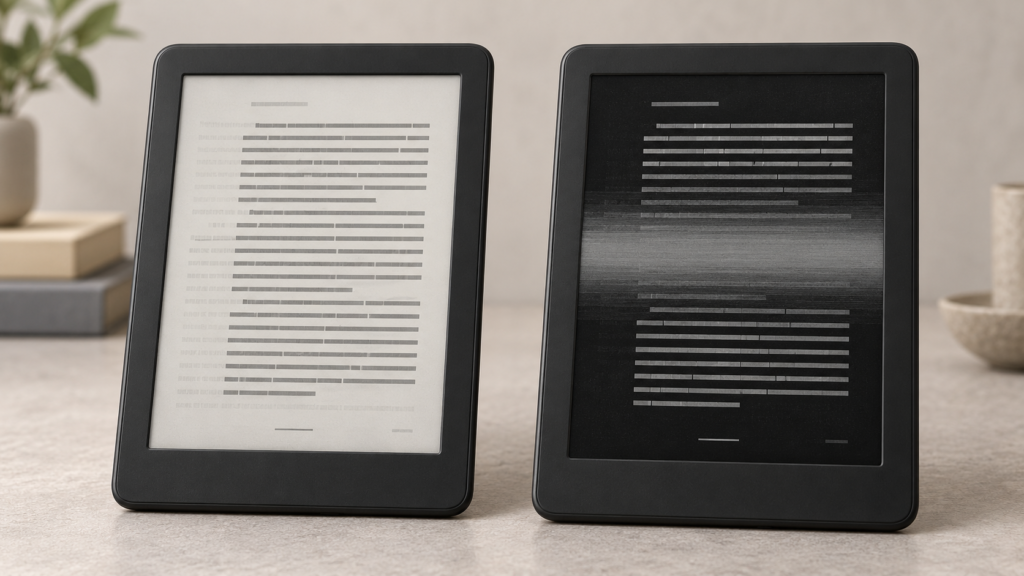
So why does an E Ink screen flash black? Every so often, the device runs a deliberate full refresh to wipe away faint leftovers of earlier pages and menus. Those leftovers are called ghosting. The real question isn’t whether your screen flashes. It’s whether the old image disappears afterward.
Quick answer A brief black or inverted flash on an E Ink screen is generally normal. It happens during a full-screen refresh, which clears the faint ghosting left behind by faster partial updates. Your device may do this automatically, every few pages or after you scroll, or when you tap a manual refresh option. What isn’t necessarily normal is a line, patch or old image that stays put after you refresh, restart and refresh again.
Why Does an E Ink Screen Flash Black?
An LCD or OLED screen creates its image with light, redrawing it many times a second. An E Ink screen works with physical pigment instead. Tiny charged particles float in a clear fluid, and electric fields pull black or white particles up toward the surface. Once they’re in place, they stay there without any power, which is why an E Ink page can sit on screen for days. E Ink’s explanation of electrophoretic display technology describes the mechanics.
Moving those particles takes a precise recipe, known as a waveform. The display controller applies a carefully timed series of voltage changes to nudge each particle toward the shade it needs to show. Most of the time, it uses a quick, light-touch recipe. A full refresh uses a more thorough one, often driving the particles all the way to black and back again so they land cleanly no matter what was on screen before.
That trip to black is the flash you see.
It doesn’t look identical everywhere. Depending on the panel, temperature, and mode, the screen might go black then white, briefly invert, blink a few times, or redraw everything when only a small part changed. For the deeper science, see how E Ink displays physically create an image.
Full Refresh Versus Partial Refresh
Your device constantly switches between two ways of updating the screen, and the difference explains almost everything about flashing and ghosting.
What is a partial refresh?
A partial refresh updates only the parts of the screen that need to change. It’s what makes E Ink feel responsive: quicker page turns, near-instant pen strokes, bearable scrolling, less flashing and less energy per update.
The catch is that this quick approach doesn’t always settle every particle perfectly. Faint traces of the previous image can linger, build up over several updates, and make fine gray detail look a little muddy.
That’s a trade-off, not a flaw. Without partial refreshes, writing, menus, and scrolling would be painfully slow.
What is a full refresh?
A full refresh resets the entire panel. It clears accumulated ghosting, brings back crisp whites and deep blacks, sharpens text, and makes grayscale more accurate.
The price is the visible flash, plus a slower update that uses more energy and interrupts scrolling or writing.
Full versus partial refresh at a glance
| Factor | Partial refresh | Full refresh |
|---|---|---|
| Screen area updated | Changed areas or pixels | Complete display |
| Speed | Faster | Slower |
| Visible flash | Usually reduced | Often obvious |
| Ghosting | Can accumulate | Usually clears it |
| Best for | Writing, scrolling, menus | Clean text, images, accumulated residue |
| Image quality | Lower to moderate, depending on mode | Usually the cleanest |
| Power per update | Generally lower | Generally higher |
Actual behavior varies by panel, display controller, waveform, firmware, temperature, and manufacturer settings.
What Is E Ink Ghosting?
Ghosting is a faint imprint of something that was on screen earlier. You might see the previous page’s text sitting behind the current one, menu icons lingering after the menu has closed, pale rectangles where the keyboard used to be, or gray smears after scrolling a webpage.
It happens because quick partial updates don’t always move every particle all the way to where it should be. The particles that fall slightly short leave behind a shadow of the old image.
Normal ghosting is easy to confuse with problems that are more serious:
- Persistent image retention is an old image that survives several full refreshes.
- Dead or stuck areas are parts of the screen that stop updating altogether.
- Physical panel damage shows up as lines, blotches, or frozen sections, often after a drop.
- OLED burn-in is permanent wear on light-emitting pixels, a completely different mechanism. Our guide to E Ink vs LCD vs OLED explains how these display types differ.
Here’s the simple test. Ghosting that disappears after a full refresh is normal. An artifact that stays put after several refreshes and a restart deserves a closer look.
Why E Ink Devices Don’t Perform a Full Refresh Every Time
If full refreshes produce the cleanest image, why not use them all the time? Because every page turn would come with a flash, scrolling would stutter, pen strokes would lag behind your hand, and menus would blink each time you opened them.
So manufacturers balance three goals: speed, image quality and how often the screen visibly flashes. No single balance suits every device. A Kindle that mostly shows static book pages can lean toward image quality, while an Android tablet running a web browser has to lean toward speed.
What Determines How Often the Screen Flashes?
The device’s refresh policy
Some devices run a full refresh after a fixed number of page turns. Others decide on the fly, based on how much ghosting they estimate has built up.
The selected refresh mode
Many devices offer modes with names like HD or Quality, Balanced, Fast, and Ultrafast, and some add Regal-style reading modes designed to keep text clean with fewer flashes. Names vary between brands, but one rule holds: the faster the mode, the more ghosting you should expect.
The type of content
Black text on a white page is the easiest thing for E Ink to show cleanly. Manga, photos, and image-heavy PDFs are harder, because the particles have to land on many in-between shades of gray, so leftovers show more readily. Webpages, video and handwriting are demanding in another way: the image never stops changing.
Continuous scrolling
Scrolling forces dozens of small updates in a few seconds, each able to leave a little residue, while a page turn makes one clean change. Where you have the choice, page-turn controls will keep the screen cleaner than scrolling.
Temperature
Cold slows the particles down, so a chilly device refreshes sluggishly and leaves more residue. If yours has been out in the cold, let it warm up to room temperature on its own. Don’t use a hair dryer, heater, heating pad, or direct sunlight.
Firmware and waveform tuning
The panel is only part of the story. The display controller, the software, and the manufacturer’s waveform tuning all shape the result, which is why two devices with similar screens can behave quite differently.
Why Does My Kindle Screen Flash Black?
Kindles run a full refresh every so often to clear leftover traces of previous pages, more or less often depending on the model, its software, the book, and your settings. Many models have also offered a page-refresh option that flashes the screen on every page turn, in exchange for consistently crisp text. Setting names change between models and updates, so check your own settings or Amazon’s help pages.
An occasional flash when you turn a page, open a menu, wake the device, or rotate the screen is normal Kindle behavior.
Why BOOX and Other Android E Ink Tablets Ghost More Visibly
Android E Ink tablets ask far more of their screens than an e-reader does. They scroll webpages, animate menus, pop up keyboards, and run apps never designed for E Ink, so they rely heavily on fast partial refreshes, and more ghosting comes with the territory.
BOOX describes four refresh modes, HD, Balanced, Fast and Ultrafast, in BOOX’s official explanation of ghosting and refresh settings. Its tablets also let you choose a mode for each app. That’s genuinely useful, but it also makes it easy to leave an app in a faster mode than it needs.
A sensible setup looks like this:
- Use HD or a Regal-style mode for books and documents.
- Use Balanced for everyday apps.
- Save Fast and Ultrafast for scrolling and typing.
- Turn on automatic full refresh after scrolling, if your device offers it.
- Set modes app by app rather than choosing one for everything.
Whether all this fine-tuning is worth the effort depends on what you use the tablet for, a question we explore in whether an E Ink tablet actually improves productivity.
Why a reMarkable Screen Occasionally Flashes
A reMarkable may briefly blink while it cleans up the display. While you write, it draws a quick, slightly rough version of each stroke so the ink keeps pace with your pen, then replaces it with a cleaner one a moment later. That change is expected, and so are faint traces of menus or previous pages. What’s worth following up is residue that survives a refresh and a sleep-and-wake cycle.
reMarkable’s official ghosting guidance calls ghosting “completely normal behavior” that most often appears after you erase or move text. It suggests swiping to the previous page and back, toggling a layer’s visibility, or sleeping and waking the tablet, and contacting support if the ghosting persists.
Is Ghosting Worse on Color E Ink?
Sometimes, but it depends on the device and the refresh mode.
Color E Ink comes in different forms. Kaleido-style displays place a color filter over a black-and-white panel, so ghosting behaves much as it does in monochrome, with leftovers sometimes showing as dull tints. Multi-pigment systems such as Gallery move colored pigments directly, which usually makes refreshes slower and more noticeable.
On color models, you may also see duller leftover colors and the occasional colored fringe around edges. That doesn’t mean every color panel ghosts more than every monochrome one. Newer panels may narrow the gap; Einkopedia looks at whether Kaleido 4 can improve color without turning up the front light.
Is the Black Flash Harmful to the Display?
No. A full refresh is part of how the display is designed to work. It doesn’t mean the screen is wearing out, and the slight extra energy it uses is what keeps your pages sharp.
How to Reduce E Ink Ghosting
If ghosting bothers you, work through these steps in order. The first few usually do the trick.
- Run a manual full refresh. Look for a refresh button or gesture in quick settings, a toolbar, or an E Ink control panel.
- Switch to a higher-quality refresh mode, such as HD, Quality, Normal, Balanced, or Regal, whichever your device offers.
- Make full refreshes more frequent, such as after every page or when you stop scrolling. You’ll trade cleaner pages for more flashing.
- Turn pages instead of scrolling in browsers, document readers, and news apps that offer a paginated view.
- Choose a mode for each app, using the table below as a starting point.
- Update the device’s software. Updates can improve how the screen refreshes, though they won’t fix every problem.
- Restart the device. This often clears stubborn ghosting.
- Let a cold device warm up naturally. Never apply outside heat.
- Compare with a built-in app. If ghosting is bad in one third-party app but fine in the device’s own reader, the app or its settings are the likely cause.
- Try the screenshot test. View a screenshot on another screen. If it looks clean but your E Ink screen doesn’t, you’re seeing display ghosting; if the mark appears in the screenshot too, the app or document is probably responsible. It’s a clue, not a definitive hardware test.
- Factory reset only as a last resort. Back up your notes, documents, and settings first, and reset only after everything above has failed.
| Activity | Suggested mode |
|---|---|
| Reading novels | Quality, HD, Normal or Regal |
| PDFs and manga | High-quality grayscale mode |
| Handwriting | Balanced or a dedicated pen mode |
| Web browsing | Balanced or Fast |
| Typing | Fast |
| Video | Fastest available, with major quality compromises |
Normal Ghosting or a Defective Screen?
| Usually normal | Potential warning sign |
|---|---|
| A faint previous page disappears after a refresh | The image remains after repeated full refreshes |
| An occasional black flash during page turns | Constant flashing, or a screen stuck refreshing |
| More ghosting in fast modes | Fixed lines that appear whatever is on screen |
| Temporary residue after scrolling | A black, white, or ink-like patch that never changes |
| Slightly slower refreshes in cold weather | Part of the display that never responds |
| Brief marks while handwriting settles | Distortion that changes when you press or flex the device |
| More residue on image-heavy pages | Visible cracks beneath the screen surface |
A damaged panel can show frozen sections, lines, or ink-like blotches even when the surface looks fine. Never press, bend, twist, or rub the screen to clear ghosting. That can turn a harmless quirk into real damage.

When Should You Contact the Manufacturer?
Get in touch with support if:
- Ghosting is still there after several full refreshes and a restart
- The same lines or patches appear no matter what’s on screen
- Part of the display has stopped updating or responding to touch
- The device keeps flashing or restarting on its own
- The problem started after the device was dropped, bent, or exposed to liquid
- A brand-new device shows the problem during setup
Take photos or a short video first. A screenshot often won’t capture a physical display fault, because it records what the software meant to show, not what the screen actually displays.
Do Newer E Ink Tablets Handle Ghosting Better?
Often, but not automatically. Newer devices tend to have faster controllers, better-tuned waveforms, and more refresh options, yet a device tuned for speed may deliberately accept more ghosting between refreshes.
What matters depends on how you use it. A reader should keep text clean, a note-taking tablet needs quick cleanup after you write, an Android tablet needs good per-app controls, and a color model needs a sensible balance of color, speed, and leftover traces.
Disclosure: The box below contains affiliate links. If you buy through them, Einkopedia may earn a commission at no extra cost to you. As an Amazon Associate, Einkopedia earns from qualifying purchases.
E Ink devices that give you better control over ghosting and refresh modes
If your current device flashes occasionally and then looks clean, it’s working as intended. These are for readers whose device’s refresh behavior genuinely gets in the way.
- Reading-first: Kobo Clara BW. Kobo readers let you choose how many pages pass between full refreshes, so you can tune flashing to taste. View at Amazon.
- Handwriting-focused: reMarkable Paper Pro. A writing-first tablet with 12 ms documented pen latency and clear official guidance on clearing residue. View at Amazon.
- Open Android: BOOX Note Air6 C. Four refresh modes, BOOX Super Refresh and per-app control for people who read, write and browse on one device. View at Amazon.
For a fuller comparison, compare the best current E Ink tablets.
Common Myths About E Ink Refreshing
“The black flash means the screen is failing.” Usually it’s the opposite. The device is actively cleaning the image.
“Ghosting is the same as OLED burn-in.” Ordinary ghosting is temporary and clears with a refresh. Burn-in is permanent.
“A premium tablet should never ghost.” Price doesn’t change the basic trade-off between speed and image quality.
“More flashing means a worse screen.” Frequent full refreshes usually mean a cleaner image.
“The fastest mode is always best.” Only when speed matters more than clarity, such as when scrolling or typing.
“A black flash means the device restarted.” A refresh takes a fraction of a second and leaves you on the same page. A restart shows a startup screen.
Frequently Asked Questions
Why does my Kindle flash black when I turn a page?
Your Kindle is running a periodic full refresh to clear faint traces of earlier pages. Most page turns use quicker partial updates, which can leave a little residue behind. Every few pages, or on every page if page refresh is turned on, the Kindle resets the whole screen, and that reset is the brief flash you notice.
Why does my E Ink tablet flash more often when displaying images?
Images ask the particles to land on many in-between shades of gray rather than plain black or white. That’s harder to do cleanly with a quick partial update, so residue builds up sooner and is easier to spot. Many devices respond by running full refreshes more often on image-heavy pages, PDFs, and manga.
Can I turn off full refreshes completely?
It depends on the device. Some let you reduce how often full refreshes happen, set long intervals, or use fast modes that rarely flash. Very few let you switch the cleanup off entirely, and for good reason: without it, ghosting piles up until text looks gray and smudged. Reducing the frequency is a reasonable middle ground.
How often should an E Ink screen perform a full refresh?
There’s no universal answer. It depends on what you’re viewing, your device, its refresh mode, the temperature, and how much flashing you’re willing to tolerate. Plain text may look fine for many pages, while manga or PDFs may benefit from a refresh on every page. Start with the default and adjust from there.
Does dark mode cause more flashing or ghosting?
It can. Large black areas mean more particles have to move with each update, and leftover traces are often easier to spot against a dark background. Some devices also handle inverted colors with more noticeable refreshes. If dark mode looks smeary on your device, try a higher-quality refresh mode or switch back to standard contrast.
Why does ghosting become worse while scrolling?
Scrolling shifts the whole image slightly, many times a second, so the screen runs a rapid stream of partial updates. Each one can leave a trace, and those traces add up quickly. A page turn makes one clean change instead, so paginated reading modes and an automatic refresh after scrolling both help.
Why does handwriting change appearance after I lift the stylus?
To keep up with your pen, the device first draws a fast, slightly rough version of each stroke. When you pause or lift the stylus, it redraws those strokes more carefully, smoothing the edges and settling the shading. That visible change is the cleanup pass doing its job, not a fault with the screen or the pen.
Does cold weather make E Ink ghosting worse?
Yes. The particles move more slowly in the cold, so refreshes take longer and leave more residue behind. The effect is temporary, though. Let the device warm up naturally at room temperature, and avoid heaters, hair dryers, or direct sunlight, which can harm both the battery and the display itself.
Can ghosting become permanent?
Ordinary ghosting should always clear with a full refresh. If an image or pattern stays fixed after repeated refreshes and a restart, something else is probably going on, such as a software fault, a problem with the display controller, or physical damage to the panel. At that point, contact the manufacturer or seller.
Does refreshing use more battery?
A full refresh uses a little more energy than a partial one, but the difference rarely matters. E Ink needs no power at all to hold a still image, so most battery drain comes from the front light, Wi-Fi, the processor, and apps. Occasional full refreshes are nothing to worry about.
Is color E Ink ghosting normal?
Some temporary residue is normal on color screens, including faint color tints and slower transitions, especially in fast modes. Like monochrome ghosting, it should clear after a full refresh. Fixed colored lines, patches, or areas that never update aren’t normal, and you should report them to the manufacturer or seller.
Should I return a new device because its screen flashes?
Not if the flash is occasional and the screen looks clean afterward. That’s how E Ink is meant to work. Contact the seller if marks remain after refreshing and restarting, if fixed lines appear, or if part of the screen won’t update, ideally while you’re still within the return window.
The Practical Takeaway
That black flash is usually your screen cleaning up, not breaking down. Quick partial refreshes keep E Ink responsive, but they leave faint traces behind. A full refresh wipes those traces away, and the flash is what that cleanup looks like.
When you’re unsure, use the simple test: if the old image disappears after a full refresh, your display is behaving normally. If the same mark survives several refreshes and a restart, it’s time to investigate.
And if your device’s refresh behavior genuinely gets in the way of your reading, writing, or drawing, compare today’s best E Ink tablets and look closely at their refresh controls, not just their screen size.