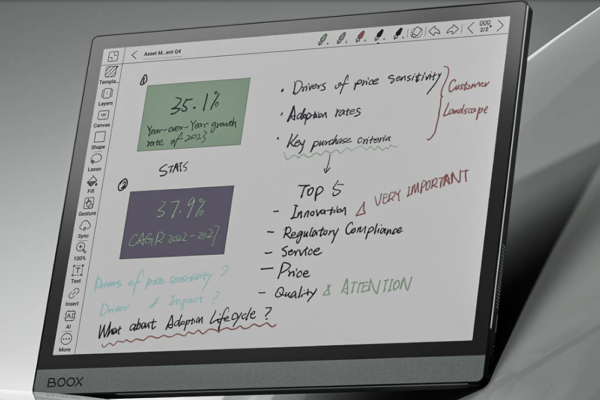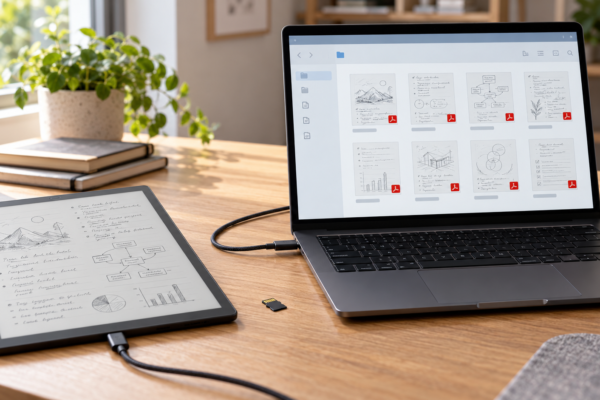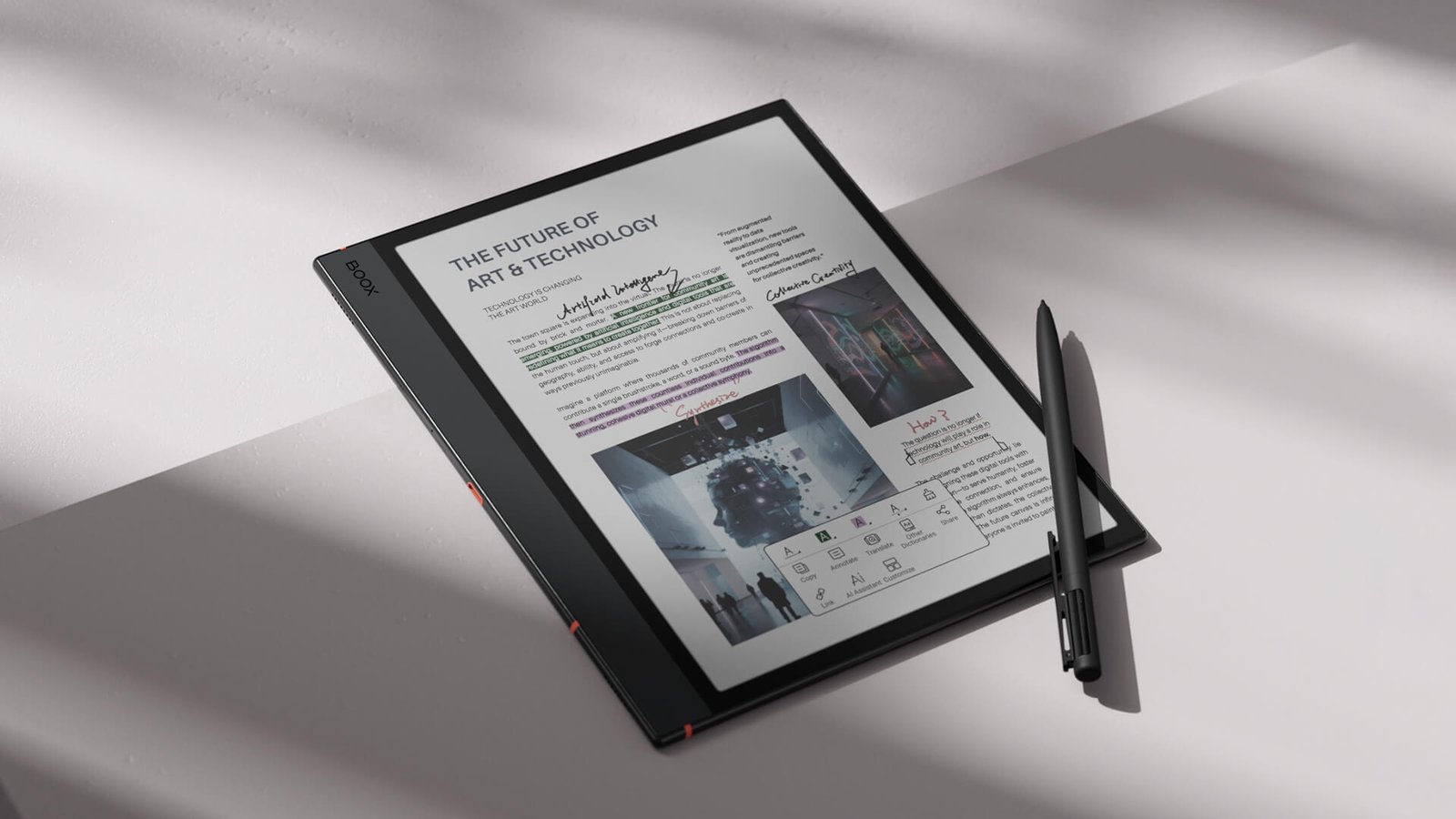
E Ink tablets are easy to fall in love with online. The screen looks like paper. The battery seems to last forever. The promise of distraction-free reading and writing sounds almost perfect. Then the device arrives.
The screen may feel too small for PDFs. The colours may look muted. A favourite app may run poorly. There may be no front light. Important notes might not export the way the buyer expected. Even the stylus or folio shown in the promotional images may cost extra.
That does not make E Ink tablets bad devices.
Here are the 16 things to know before buying an E Ink tablet—including the limitations manufacturers rarely place at the top of the product page.
E Ink tablets are easy to buy for the wrong reasons. The screen looks comfortable in every product photo. The battery claims sound impressive. The promise of distraction-free writing is appealing enough to justify almost any price tag. Then the device arrives, and the buyer discovers it has no front light, can’t run a required app properly, handles PDFs poorly, or locks their notes inside an inconvenient ecosystem.
The biggest purchasing mistake is choosing an E Ink tablet by brand, spec sheet, or online popularity before defining the job it actually has to do. Every major E Ink platform — BOOX, reMarkable, Supernote, Kindle, Kobo, and PocketBook — involves real compromises, and none of them does everything well. The right device is simply the one whose compromises don’t interfere with your actual workflow.
This guide walks through the most common and most expensive mistakes to avoid when buying an E Ink tablet, why each one leads to buyer’s remorse, and a practical way to sidestep it before you pay.
In this guide
- The Biggest Mistake Happens Before the Product Search Begins
- Mistake 1: Buying an E Ink Tablet When an E-Reader Would Be Enough
- Mistake 2: Expecting an E Ink Tablet to Behave Like an iPad or Laptop
- Mistake 3: Choosing a Device Before Defining the Workflow
- Mistake 4: Buying the Wrong Screen Size
- Mistake 5: Assuming Color E Ink Looks Like an LCD or OLED Screen
- Mistake 6: Forgetting to Check for a Front Light
- Mistake 7: Ignoring Ghosting, Refresh Modes, and Scrolling Behavior
- Mistake 8: Assuming Android Means Every App Will Work Well
- Mistake 9: Overlooking e-Book Stores, DRM, and Library Compatibility
- Mistake 10: Ignoring Export, Backup, and Ecosystem Lock-In
- Mistake 11: Missing Subscriptions, Cloud Restrictions, and Security Concerns
- Mistake 12: Evaluating Note-Taking by Pen Latency Alone
- Mistake 13: Forgetting About the Stylus and Accessories
- Mistake 14: Overestimating Handwriting Recognition and AI Features
- Mistake 15: Believing Headline Battery Claims
- Mistake 16: Looking Only at the Device’s Starting Price
- The E Ink Tablet Buyer’s Reality Check
- Choose the Right E Ink Tablet for Your Workflow
- A 10-Minute Checklist Before Placing the Order
- When an E Ink Tablet Is the Wrong Purchase
- Frequently Asked Questions
- Buy for the Workflow, Not the Specification Sheet
The Biggest Mistake Happens Before the Product Search Begins
“E Ink tablet” is used loosely to describe several genuinely different products: basic e-readers, digital notebooks, reading-and-writing tablets, open Android E Ink tablets, large-format PDF devices, E Ink monitors, and conventional tablets with a built-in reading mode. They can look nearly identical in a thumbnail and still serve very different jobs.
Start with the job, not the brand
Before comparing specific models, name your three most important tasks. Reading Kindle books, handwriting meeting notes, annotating academic PDFs, running Android apps like Notion or Libby, writing with a keyboard, organizing research, reading comics in color, replacing a paper notebook, or handling confidential business documents — no single E Ink tablet is the best choice for all of these at once.
Define your workflow before you shop
- Three essential tasks
- Two desirable-but-optional features
- One compromise you will not accept
- Required apps or services
- Required file formats
- A complete budget, including accessories
- Preferred screen size and portability
Mistake 1: Buying an E Ink Tablet When an E-Reader Would Be Enough
An expensive note-taking tablet isn’t required for ordinary e-book reading. If your workflow is really just reading, a conventional e-reader will usually be lighter, cheaper, and longer-lasting than a productivity tablet doing the same job. More features rarely make a pure reading device better — mostly they add weight, cost, and points of failure.
Buy an e-reader if you mainly read books and want the lightest, cheapest device with the best battery life. Buy an E Ink tablet if you need to write by hand, annotate PDFs, or manage documents alongside reading.
- Reading-first: a standard Kindle or Kobo e-reader — simple, inexpensive, minimal note tools.
- Compact note-capable: something like the Kobo Elipsa 2E or Supernote Nomad — handwriting in a smaller footprint.
- Full-sized writing tablet: something like the reMarkable Paper Pro or Kindle Scribe — built for serious note-taking, at a higher price. (Check Current Price →)
Mistake 2: Expecting an E Ink Tablet to Behave Like an iPad or Laptop
E Ink’s paper-like readability comes with real performance trade-offs: slower screen refresh, ghosting, limited video and animation, weaker multitasking, and muted color reproduction. A faster processor doesn’t remove the physical limitations of the display itself — the panel, not the chip, is usually the bottleneck.
E Ink genuinely handles reading, handwriting, document review, and distraction-reduced drafting well. Conventional tablets generally handle video, gaming, fast web browsing, photo and graphic editing, and complex multitasking better. An E Ink tablet should usually complement a computer or conventional tablet, not replace one, without testing your specific workflow first.
Mistake 3: Choosing a Device Before Defining the Workflow
“Best brand” is the wrong starting point. Broad platform philosophies — a distraction-free notebook, an open Android tablet, a reading-first ecosystem, a file-management-focused notebook, a large-screen PDF workstation — matter more than any single spec.
Questions to answer before comparing models
Which apps are essential? Must files stay accessible offline? Is handwriting or full-text PDF search required? Do annotations need to export cleanly? Is cloud syncing optional or essential? Will the device pair with Windows, macOS, Android, or iOS? Does an employer restrict third-party cloud services? Is a front light required? Must it work with Kindle books or library e-books?
Mistake 4: Buying the Wrong Screen Size
Screen size affects far more than portability — it changes what’s actually comfortable to do on the device.
| Screen class | Best suited to | Principal compromise |
|---|---|---|
| ~6–7 in | Novels, portability | Little room for writing or full-page PDFs |
| ~7.8–8.5 in | Portable notes, manga, mixed reading | PDFs may still need zooming |
| ~10.2–10.7 in | Notes, study, general PDF work | Less comfortable one-handed |
| ~13.3 in | Full-page PDFs, technical documents, sheet music | Expensive, harder to carry |
Diagonal size alone isn’t enough — check aspect ratio, resolution, weight, and usable writing area, plus whether you’ll mostly hold it in portrait or landscape. Check Einkopedia’s guide to the best E Ink tablets for reading and annotating PDFs.
Popular choices by size: (Check Current Price →)compact color devices like the Kobo Libra Colour or BOOX Palma 2 Pro; mid-size note devices like the Kindle Scribe, BOOX Note Air6 C, or Kobo Elipsa 2E; large-format work like the BOOX Tab X C.
Mistake 5: Assuming Color E Ink Looks Like an LCD or OLED Screen
Color E Ink is genuinely useful, but it isn’t as vibrant as a phone or tablet screen. Expect muted, print-like color; a darker-looking background than monochrome panels; greater dependence on front light; and some ghosting trade-offs when refreshing quickly. Marketing photos are often lit and processed in ways ordinary room lighting won’t match.
Color adds real value for highlighting notes, charts and diagrams, manga and comics, textbooks, and color-coded planning. It tends to disappoint buyers expecting photography-grade or design-grade color accuracy, or tablet-like vibrancy generally.
Monochrome usually suits buyers who want maximum contrast, the crispest black text, a lighter-looking screen, and a lower price. Color usually suits buyers who genuinely work with color-coded or illustrated material. Neither display type is universally better. Check Einkopedia’s E Ink vs. LCD vs. OLED comparison.
Mistake 6: Forgetting to Check for a Front Light
Not every E Ink tablet has an integrated front light — some writing-focused devices, like the Supernote Nomad, ship without one to preserve contrast and pen feel. A front light is what makes reading in bed, dim offices, or airplane cabins comfortable; “paper-like” doesn’t mean visible in the dark.
Before buying, verify whether a light is present, whether brightness and warm/cool temperature are both adjustable, whether owners report uniformity problems, and whether the extra display layer changes how the pen feels on the screen.
Mistake 7: Ignoring Ghosting, Refresh Modes, and Scrolling Behavior
Ghosting is the faint trace of previous content that lingers after a page updates. Faster refresh modes reduce lag but can introduce more visible artifacts; a full refresh clears the screen but takes longer. Scrolling-heavy apps expose these weaknesses more than a native notes app does — a device demonstrated smoothly in its own notebook app may behave very differently in a third-party PDF reader or browser.
Before buying: watch uncut demonstrations, not just polished promotional clips. Look specifically at scrolling, page turns, and how quickly ghosting clears, and check whether refresh settings can be adjusted per app.
Mistake 8: Assuming Android Means Every App Will Work Well
Being able to install an app, open it, and have it actually work well on E Ink are three different things. Only some E Ink tablets — BOOX’s lineup, most notably — run open Android with Google Play access; reMarkable, Kindle, and most PocketBook models use closed, non-Android software and can’t install external apps at all.
Even on Android devices, expect variability with apps like Google Docs, Notion, Obsidian, Readwise, or Libby: some run fine, some fight the slow refresh rate, and some drain the battery faster in the background. Verify the specific app on the specific device and current software version before buying — don’t assume “Android” means universal compatibility.
Mistake 9: Overlooking e-Book Stores, DRM, and Library Compatibility
Supporting EPUB or PDF files doesn’t mean a device can conveniently access every book you already own. Kindle purchases, Kobo purchases, and Adobe DRM–protected library loans each work differently across brands. Kobo and most PocketBook readers can browse and download library e-books directly on the device; current Kindles can receive Libby loans via Amazon’s send-to-device flow but can’t run the Libby app itself; reMarkable has no e-book store at all.
A device may technically support EPUB while still offering no convenient way to read the books you already own. Audit your existing library — Kindle, Kobo, or library-card loans — before switching ecosystems.
Mistake 10: Ignoring Export, Backup, and Ecosystem Lock-In
Importing a document is only half the workflow — you also need to know how a finished note leaves the device. Consider PDF and image export, editable text via handwriting recognition, proprietary notebook formats, cloud-only features, local USB transfer, and integrations with Google Drive, Dropbox, or OneDrive.
Run the exit test before buying
Can an entire notebook be exported? Are links, layers, and colors preserved? Can files be backed up locally without a subscription? Can exported notes be edited elsewhere? What happens if the manufacturer’s cloud service changes, or the device is lost or damaged? These are some of the more important points to consider before zeroing in on a particular device. Meanwhile, refer to Einkopedia’s guide to E Ink productivity and note-management workflows.
Mistake 11: Missing Subscriptions, Cloud Restrictions, and Security Concerns
The full feature set isn’t always included permanently in the hardware price. Extended cloud storage, handwriting conversion, AI tools, premium templates, and collaboration features are sometimes gated behind an optional subscription — check current official terms rather than assuming one is mandatory.
For business use, verify encryption, device lock options, remote-wipe support, whether the manufacturer’s cloud is compatible with company policy, and whether AI features process notes locally or send them to a remote server.
Mistake 12: Evaluating Note-Taking by Pen Latency Alone
Low latency doesn’t guarantee a strong note-taking system. Organization features matter just as much: tags, links and backlinks, a table of contents, handwriting search, a lasso tool, layers, templates, page reordering, split-screen notes, and export quality. The best writing surface doesn’t always come with the best organizational system, and vice versa.
Match note features to the actual job
Meeting notes need fast capture and search. Academic research needs tagging and PDF annotation. Long-form writing needs a keyboard workflow. Mathematical work needs shape and equation tools. Match the feature set to what you’ll actually do, not to a demo reel.
Mistake 13: Forgetting About the Stylus and Accessories
The advertised starting price doesn’t always include everything you need. Verify whether a stylus and case are included, whether the pen needs charging, whether it uses a standard EMR tip or a proprietary one, and what a folio or keyboard case costs separately — the reMarkable Paper Pro, for example, starts at $579 with a basic marker, but a keyboard folio adds roughly $229 more. “Stylus support” is not the same as “stylus included.”
Mistake 14: Overestimating Handwriting Recognition and AI Features
Handwriting-to-text conversion works best on neat, consistent writing and struggles more with messy handwriting, mathematical notation, diagrams, and mixed languages. Some conversion happens on-device; some requires an internet connection or a subscription tier. AI summaries can also omit context or misstate details.
Treat AI and recognition features as assistive extras, not as a reason to overlook weaknesses in the basic reading, writing, and export workflow.
Mistake 15: Believing Headline Battery Claims
E Ink genuinely allows excellent battery life, but a “weeks on one charge” claim usually describes light, front-light-off reading — not daily Wi-Fi syncing, Android background apps, fast-refresh handwriting, or AI features. Standby life, light reading, daily handwriting, and app-heavy productivity use are four very different battery stories on the same device. Compare tests based on similar workloads rather than repeating a manufacturer’s best-case number as a universal result.
Mistake 16: Looking Only at the Device’s Starting Price
The complete cost of ownership includes the stylus, a premium pen tier, a folio or keyboard case, replacement nibs, any cloud subscription, shipping, and — for imported devices — duties and taxes.
Check the complete package price:
| Item | Example (reMarkable Paper Pro) |
|---|---|
| Device + basic marker | $579 |
| Marker Plus upgrade | $629 total |
| Type Folio keyboard | +$229 |
| Protective case | +$89–179 |
Warranty and returns matter more with E Ink
Check the return window, restocking fees, the dead-pixel or display-defect policy, who pays return shipping, and whether an opened device can be returned at all.
Don’t buy solely because a model is discounted
A steep discount can mean an older Android version, reduced software support, discontinued accessories, or a new generation arriving soon. Confirm current support status before buying clearance stock.
The E Ink Tablet Buyer’s Reality Check
| Primary use | Must-have | Acceptable compromise | Mistake to avoid |
|---|---|---|---|
| Reading novels | Portability, preferred bookstore | Limited note tools | Overbuying productivity features |
| Academic PDFs | Large screen, strong annotation | Extra weight | Choosing too small a display |
| Handwritten notes | Reliable pen, organization | Fewer third-party apps | Judging by latency alone |
| Android apps | App-store access | Shorter battery life | Assuming every app is optimized |
| Color documents | Useful color, good lighting | Muted color | Expecting LCD-quality vibrancy |
| Business use | Secure export, device controls | Higher price | Ignoring cloud and privacy policy |
| Distraction-free writing | Keyboard or handwriting flow | Minimal multimedia | Expecting a full laptop replacement |
| Manga and comics | Suitable size, color or contrast | Reduced portability | Choosing on resolution alone |
Choose the Right E Ink Tablet for Your Workflow
- Best for distraction-free handwriting: something like the reMarkable Paper Pro — a purpose-built writing surface with almost no distractions. Compromise: no app store and no native e-book store. (Check Current Price → reMarkable Paper Pro)
- Best for Android flexibility: something like the BOOX Note Air6 C — full Google Play access on an E Ink panel. Compromise: more background activity, shorter battery life than a closed system. (Check Current Price → BOOX Note Air6 C)
- Best for PDFs and large documents: something like the BOOX Tab X C — a 13.3-inch panel that shows full pages without zooming. Compromise: heavy, expensive, harder to carry. (Check Current Price → BOOX Tab X C)
- Best for reading with occasional notes: something like the Kindle Scribe or Kobo Elipsa 2E — a strong reading and library ecosystem plus adequate note tools. Compromise: weaker note organization and export than a dedicated notebook platform. (Check Current Price → Kindle Scribe, Kobo Elipsa 2E)
A 10-Minute Checklist Before Placing the Order
- Identify your three essential tasks.
- Decide whether an e-reader would be sufficient.
- Confirm the screen size you actually need.
- Choose monochrome or color deliberately.
- Verify front-light availability.
- Check every essential app individually.
- Confirm e-book store and library (DRM) compatibility.
- Test or research how notes export.
- Calculate the complete package price.
- Read the current return and warranty policy.
- Check the software-update history.
- Watch unedited demonstrations of real workflows.
- Confirm what works offline versus what needs the cloud.
- Check nib and accessory availability.
- Buy from a seller with a practical return route.
If a critical feature can’t be confirmed from official documentation or a credible demonstration, don’t assume the device supports it.
When an E Ink Tablet Is the Wrong Purchase
A conventional tablet, a lightweight laptop, or an ordinary e-reader is usually the better choice for smooth video, fast scrolling, rich web browsing, color-accurate work, heavy multitasking, spreadsheets, full desktop software, gaming, or complex presentations. And for some people, plain paper still beats any screen — E Ink included — when search, backup, and remote access simply aren’t priorities. None of this means E Ink tablets are a bad category; it means matching the tool to the actual job.
Frequently Asked Questions
Are E Ink tablets worth buying?
It depends on your workflow. If reading, handwriting, or document review is a real part of your day, an E Ink tablet can genuinely reduce distraction and eye strain during long sessions. If you mainly need color-accurate work, video, or fast multitasking, the value drops quickly — you’d be paying a premium for a screen technology that isn’t suited to the job.
Can an E Ink tablet replace an iPad?
For specific tasks — reading, handwriting, PDF review, distraction-free drafting — yes, often comfortably. As a complete replacement, rarely: E Ink’s slower refresh, limited color, and weaker multitasking make video, browsing, and creative apps noticeably worse. Most buyers get better results treating an E Ink tablet as a companion device rather than a one-for-one iPad substitute.
Is black-and-white or color E Ink better?
Neither is universally better. Monochrome offers higher contrast, crisper black text, and a lower price, which suits reading and handwriting-focused buyers. Color E Ink is genuinely useful for highlighting, charts, manga, and color-coded planning, but the color itself is muted compared with an LCD or OLED screen and depends more heavily on the front light.
What is the best E Ink tablet size for PDFs?
Around 10 inches is the practical starting point for most full-page PDFs without constant zooming. Academic papers and standard documents are usually comfortable at 10.2–10.7 inches. Technical drawings, sheet music, or large-format textbooks may justify a 13.3-inch device, though that size comes with a real weight and portability trade-off.
Do all E Ink tablets have a front light?
No. Several writing-focused devices, including some Supernote models, ship without one to preserve contrast and pen feel. Availability varies by brand and even by specific model within a brand’s own lineup, so this needs to be verified for the exact device you’re considering rather than assumed.
Can E Ink tablets run Kindle, Libby, and other reading apps?
It depends on the operating system. Open Android devices, like most BOOX models, can install the Kindle and Libby apps directly through Google Play. Closed-ecosystem devices, like reMarkable and Kindle itself, can’t install outside apps at all, though some support sending files or library loans to the device by other means.
How much storage does an E Ink tablet need?
Notes and e-books take up relatively little space, so 32 GB is usually enough for reading and handwriting alone. Buyers who plan to store large PDF libraries, comics, audiobooks, or offline document archives should look for 64 GB or more, or a model with expandable microSD storage.
Do E Ink tablets really last for weeks on one charge?
Sometimes, under light reading conditions with the front light low and Wi-Fi off. Daily handwriting, frequent syncing, Android background apps, and AI or cloud features all shorten that considerably. Treat headline battery claims as a best-case number, not a guarantee for how you’ll actually use the device.
Is it safe to buy an older E Ink tablet at a discount?
It can be, but check the software-update history, current accessory availability, and warranty terms first. A steep discount sometimes signals a model nearing the end of its support window rather than just good timing, and a battery that’s already a few years old will have less capacity left than a new one.
Should buyers order from Amazon or the manufacturer?
Neither is automatically better. Amazon can offer faster shipping and familiar return policies; the manufacturer’s own store sometimes has better bundle pricing or handles warranty claims more directly. Compare price, bundle contents, and who actually processes returns and warranty claims before choosing either option.
Buy for the Workflow, Not the Specification Sheet
The wrong E Ink tablet is usually not a bad device. It’s a device bought for a job it was never designed to perform.
Before paying for any E Ink tablet, prioritize workflow fit over specs: the screen size that matches what you’ll actually do, the ecosystem that already holds your books or documents, a real export and backup plan, the complete ownership cost, and a return policy that protects you if it isn’t right.
Readers who have defined their workflow can move on to Einkopedia’s current buying guide, where the leading E Ink tablets are compared by use case rather than specs alone. (Compare the Best E Ink Tablets →)