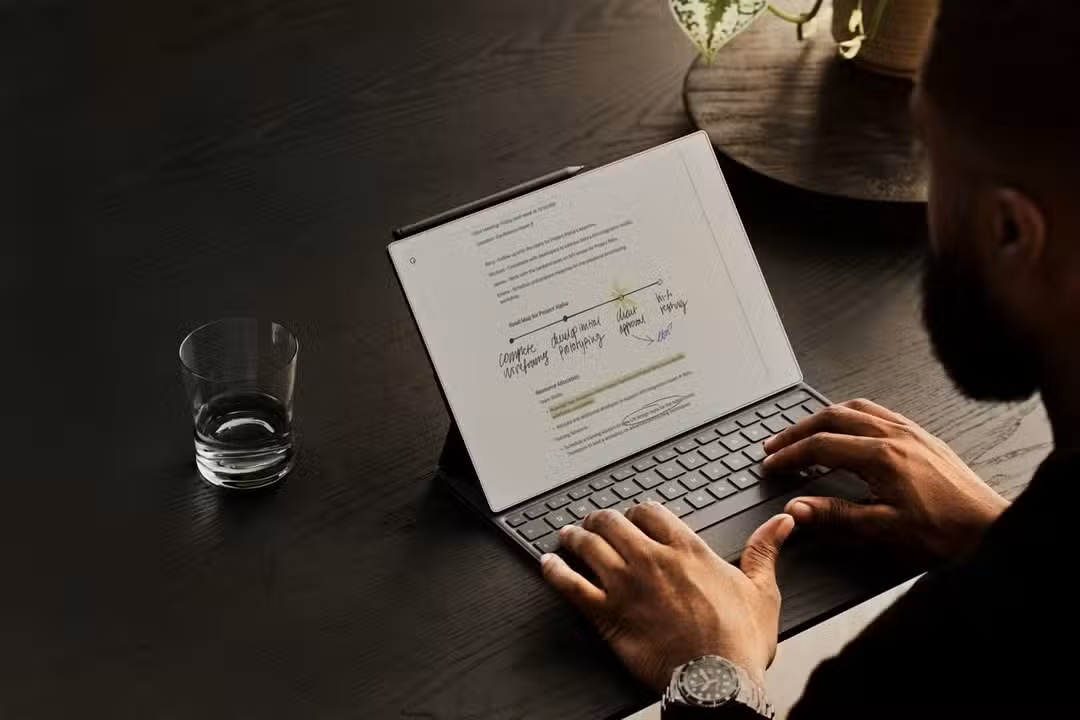
Picture two scenes. You’re sitting in a lecture hall, and the professor is moving fast through slides. Or you’re at the kitchen table at 9 p.m., trying to get your thoughts down before bed. In both cases, you’re holding an E Ink tablet. The question is the same: type it, or write it by hand?
E Ink tablets used to be simple reading devices. Today, most of them do far more. Kindle Scribe, reMarkable, Supernote, and BOOX all support handwriting with a stylus. Many also support typing, through an on-screen keyboard, a keyboard cover, or a full Bluetooth keyboard. That means users now have a real choice to make, and it isn’t always obvious which option is better.
The short answer: neither method wins outright. Handwriting and typing are suited to different jobs. Handwriting slows a person down and helps them think. Typing speeds them up and helps them produce. The right E Ink device, and the right input method, depends on what the task actually requires.
This guide – Typing vs Handwriting on E Ink – covers what readers need to make that decision. It explains how typing and handwriting work on E Ink screens, what the science says about memory and learning, how the two methods compare feature by feature, and which devices are the best E Ink tablets for writing depending on the task. It also looks at how students, professionals, writers, and researchers use E Ink tablets differently, and it ends with a practical decision guide for choosing, or combining, the right approach.
What Does Typing on an E Ink Device Mean?
E Ink devices didn’t start out as typing machines. Most were built for reading, and manufacturers assumed most input would come from page turns and the occasional search box. That has changed. There are now several methods that let users type on an E Ink screen.
On-screen virtual keyboards. Every E Ink tablet with a touchscreen includes some kind of on-screen keyboard. It appears when a user taps a text box, note, or search field. On-screen keyboards work fine for short entries like file names, tags, or search terms. They’re much slower for long-form writing, since each key press triggers a small screen refresh and there’s no physical feedback to guide typing speed.
Bluetooth keyboards. Most Android-based E Ink tablets, including BOOX and Bigme devices, support Bluetooth keyboards. Once paired, they take on the form of a laptop device. Users pair a keyboard once, and it works across every app on the device. This turns an E Ink tablet into something closer to a lightweight word processor.
Keyboard covers and folios. Some brands sell purpose-built keyboard covers. Take for instance the reMarkable’s Type Folio and Bigme’s keyboard folio. Both connect through physical pogo pins and not Bluetooth. Since there is no Bluetooth connection involved, there is no pairing or charging needed. Supernote’s Manta and Nomad support keyboard shortcuts through paired Bluetooth keyboards inside their Word-compatible document app.
Built-in physical keyboards. Physical keyboards built directly into the tablet body are rare in the current E Ink lineup. Most manufacturers instead sell a separate keyboard case, which keeps the base tablet thin and light for reading.
USB keyboards. A handful of Android-powered E Ink tablets accept USB keyboards through a USB-C hub or adapter, though this is a niche setup reserved mostly for desks.
Typing on E Ink feels different from typing on a laptop or a phone. E Ink panels refresh more slowly, so every keystroke waits, however briefly, for the screen to update. On older or budget E Ink devices, this can mean a visible lag between a keypress and the letter appearing. On newer devices, especially those with faster processors and optimized refresh modes, that lag has shrunk to a level most users don’t notice during normal typing.
Despite the slower refresh, many people still prefer typing on E Ink over typing on a phone or laptop for certain tasks. The screen is easier on the eyes over a long writing session, there are no notifications competing for attention, and the lack of a browser or app store on some devices removes the temptation to check email mid-sentence.
What Counts as Handwriting on an E Ink Device?
Handwriting on an E Ink tablet means using a stylus, sometimes called a pen or marker, to write or draw directly on the screen. It’s the same way someone would write on paper with a pen.
Stylus and active pens. Most handwriting-capable E Ink tablets use an “active” pen. What this means is it is not just the screen, but the pen also does part of the work. Active pens communicate with the tablet to report position, pressure, and sometimes tilt. Passive styluses, by contrast, behave more like a fingertip and offer less precision.
Pressure sensitivity. Modern active pens are capable of detecting how hard someone is pressing against the display and adjusts the line thickness accordingly. It is similar to how a real pen or pencil behaves. This is part of what makes digital handwriting feel closer to writing on paper.
Palm rejection. Palm rejection lets a user rest their hand on the screen while writing, without the tablet mistaking the hand for input. Nearly every modern handwriting-focused E Ink tablet comes with palm rejection technology, though quality varies between brands.
Digital ink and note-taking apps. Handwriting is stored as “digital ink,” a format that records the strokes a user makes rather than a flat image. This is what allows features like resizing handwritten notes, converting handwriting to text, and searching handwritten content later.
Annotation and sketching. Beyond note-taking, styluses handle PDF annotation, document markup, sketching, and drawing. Devices like the reMarkable Paper Pro and Supernote Manta support layered drawing tools, multiple pen types, and colored ink on color screen enabled models.
Writing directly on PDFs and books. Kindle Scribe lets users write directly inside books using a feature called Active Canvas, which expands the page to make room for handwritten notes. Other devices let users import PDFs and mark them up the same way they would a printed page with a pen.
The “paper-like” feel. Manufacturers spend real effort trying to make handwriting on E Ink feel like writing on paper. That includes textured screen surfaces that create slight friction against the pen tip, low latency (the gap between the pen moving and the ink appearing), and matte, non-reflective displays. No E Ink screen writes exactly like paper, but the gap has closed considerably in recent years.
Why E Ink Changes the Experience
E Ink is fundamentally different from the LCD and OLED screens found in phones, laptops, and tablet devices. That difference explains why typing and handwriting both feel unusual the first time someone tries them on an E Ink device.
E Ink screens don’t emit light. They reflect it, the same way a printed page does. That’s why E Ink is often described as paper-like, and it’s the main reason E Ink causes less eye strain during long reading or writing sessions. There’s no backlight glaring into the eyes, and no flicker.
E Ink screens also refresh more slowly than LCD or OLED. A typical monochrome E Ink refresh takes a fraction of a second for text, and full-color E Ink refreshes can take several seconds. That’s a tradeoff. It’s part of why E Ink devices sip power instead of draining it, often lasting days or weeks on a single charge instead of hours. It’s also why E Ink is a poor fit for video or fast-scrolling content, but a strong fit for reading and writing, tasks that don’t need a high frame rate.
Because there’s no backlight competing for battery life, E Ink devices can run a long time between charges. Combined with the lack of an app store or social media on some models, E Ink tablets have minimal distractions and hence feel calmer and more focused than a typical laptop or phone.
Both typing and handwriting benefit from these traits, but in different ways. Handwriting benefits most from low latency and a matte, textured surface. Typing benefits most from reduced eye strain during long sessions and the absence of distracting notifications. Neither input method suffers from E Ink’s biggest weakness, slow refresh, nearly as much as video or gaming would.
The Science Behind Handwriting vs Typing
Memory
A growing body of research suggests handwriting helps people remember information better than typing does. A 2025 review published in the journal Life, led by researchers at Rome’s Catholic University of the Sacred Heart, analyzed neuroimaging and EEG studies comparing the two methods. The review found that handwriting activates a wider network of brain regions tied to movement, memory, and language than typing does. Typing, by comparison, produced more limited, more passive brain activity.
One common explanation is that handwriting simply takes longer. Because writing by hand is slower than typing, people can’t transcribe word for word. Instead, they summarize, paraphrase, and prioritize what matters, and that extra mental processing appears to help information stick. Researchers describe this as “generative” processing, as opposed to the more passive, verbatim transcription typing tends to produce, especially when someone types along with a lecture or meeting.
Not every researcher agrees on how strong this effect is. A widely discussed 2024 EEG study claimed handwriting produces significantly more brain connectivity than typing, but a later commentary from other researchers pointed out that the original study only measured the difference between the two conditions, not each one on its own, which limits what can be concluded. The nuance matters: handwriting appears to carry real memory advantages, but the size of that advantage depends on the task, the person, and how the comparison is measured.
Learning
This memory research has practical implications for note-taking in classrooms and self-study. Studies on lecture notes have repeatedly found that people who type tend to write down more words overall, but people who write by hand tend to retain more of the underlying concepts. That’s likely tied to the same generative processing effect: typing enables verbatim transcription, while handwriting forces summarization in real time.
That doesn’t mean typing has no place in learning. Typing is faster for capturing large amounts of information quickly, which matters when reviewing dense material or working from source documents. For active recall and exam preparation specifically, several studies point toward handwriting, or handwriting-based methods like concept maps, as more effective than typed notes. Typed notes remain useful for building searchable, well-organized reference material afterward.
Creativity
Handwriting is often linked to idea generation and early-stage creative thinking. Because it’s slower and less structured than typing, handwriting tends to encourage looser, more associative thinking, useful for brainstorming or working through a plot problem. Many writers handwrite specifically because it removes the temptation to edit while drafting, since crossing out and rewriting by hand takes real effort.
Typing, on the other hand, tends to help with organizing ideas once they exist. It’s easier to move paragraphs, restructure an outline, or edit a scene when the words are already in an editable digital format. Most experienced writers use both: handwriting to generate raw material, typing to shape it into something polished.
Focus
Handwriting tends to slow down thinking, and that slowdown isn’t always a downside. A slower pace can force more deliberate thought, similar to how reading a difficult passage aloud can improve comprehension compared to skimming it. Typing supports the opposite goal: getting a large volume of content down quickly, which matters for meeting notes, first drafts, or any task where speed counts more than depth.
Neither approach is universally superior. The research consistently points toward a best-tool-for-the-job conclusion rather than a clear winner, and that theme carries through the rest of this guide.
Typing vs Handwriting: Feature-by-Feature Comparison
| Category | Typing | Handwriting |
| Speed | Faster for most typists | Slower, especially for long text |
| Accuracy | High, aided by autocorrect | Depends on penmanship and recognition software |
| Comfort | Comfortable for long sessions with a good keyboard | Can cause hand fatigue over very long sessions |
| Editing | Easy to cut, copy, and move text | Harder; needs lasso tools or crossing out |
| Brainstorming | More structured, list-based | Freeform and associative |
| Learning | Good for capturing volume | Good for retention and recall |
| Memorization | Weaker, due to verbatim transcription | Stronger, due to generative processing |
| Long-form writing | Efficient for drafting and editing | Slower, but can improve first-draft quality |
| Journaling | Fast, easy to search later | More personal, tied to reflection |
| Meeting notes | Fast, easy to share | Good for diagrams and quick sketches |
| Annotation | Limited to text comments | Strong: margin notes, arrows, underlines |
| Drawing | Not possible | Fully supported |
| Diagrams | Requires dedicated software | Natural and immediate |
| Mind maps | Possible with apps | More intuitive freehand |
| Multitasking | Easy to switch between apps | Slower to switch contexts |
| Collaboration | Easy to share and co-edit | Harder unless converted to text |
| Organization | Naturally sorted into files and folders | Needs tagging or scanning to stay organized |
| Searchability | Fully searchable by default | Searchable only with handwriting recognition |
| Portability | Needs a keyboard for full speed | Needs only a stylus |
| Battery impact | Minimal extra draw | Minimal extra draw |
| Accessibility | Better for some motor or vision needs | Better for some learning and memory needs |
| Ergonomics | Depends on keyboard quality | Depends on pen grip and screen texture |
A few of these deserve extra explanation.
Speed vs. memorization is the core tradeoff in this whole guide. Typing wins on raw speed. Handwriting wins on how well the content sticks. Neither can claim both at once, at least according to current research.
Editing is one of typing’s clearest advantages. Moving a paragraph, fixing a typo, or reformatting a document takes seconds when typed. On paper, or in most digital ink, the same task means crossing out, rewriting, or using lasso-select tools that rarely feel as fast as a keyboard shortcut.
Searchability used to be a clear win for typing, but that gap has narrowed. Handwriting recognition, now built into Kindle Scribe, reMarkable, Supernote, and BOOX, can convert handwritten notes into searchable text. It isn’t perfect, especially with messy handwriting, but it’s good enough for most everyday searching.
Drawing and diagrams remain firmly handwriting’s territory. No amount of typing speed replaces the ability to sketch a quick diagram, draw an arrow between two ideas, or doodle in a margin.
Typing vs Handwriting for Different Use Cases
Students
Students juggle lecture notes, reading assignments, essays, and exam prep, often all on the same device. Research on lecture notes generally favors handwriting for retention, especially in classes built around concepts rather than simple facts. Typing works better for large volumes of dense material, like transcribing an entire textbook chapter for later reference.
A practical approach: handwrite notes during lectures and problem sets, then type essays, reports, and anything meant to be shared or submitted. Many students keep a hybrid notebook, handwriting most content while typing headers or key terms for easier searching later.
Professionals
In a work setting, meeting notes usually benefit from handwriting, since it’s fast enough to keep pace with conversation without creating the “laptop screen barrier” that can make note-taking feel less engaged. Project planning and reports, on the other hand, usually need to be typed eventually, since they get shared, edited, and formatted.
Emails and research summaries lean typed almost by default, since both usually end up as digital text sent to someone else. A common professional workflow is handwriting notes during meetings, then converting them to text or retyping the key points into an email or project tool afterward.
Writers
Writers are some of the heaviest users of hybrid workflows. Many novelists and screenwriters handwrite first drafts, or at least outline and plot points by hand, because it slows down the internal editor and encourages rougher, more honest first attempts. Editing, revising, and formatting almost always move to a keyboard, since managing a full manuscript by hand isn’t practical.
Blogging tends to skew typed from the start, since posts are usually written directly for a screen. Distraction-free writing, though, is where E Ink shines regardless of input method. Writing with no notifications, no browser tabs, and no autoplay video removes a major source of friction for both handwritten and typed drafts.
Researchers
Researchers spend a lot of time reading and annotating PDFs, and this is one of the strongest handwriting use cases on E Ink. Marking up a paper with underlines, margin notes, and quick summaries mirrors how many academics already work with printed journal articles. Extracting notes into a citation manager or reference document, though, usually requires typed text, which is why handwriting-to-text conversion is especially valuable for this group.
Journalers
Daily journaling is one of the clearest wins for handwriting. Reflection and honesty tend to improve when writing is slower and feels more private, and handwriting checks both boxes. Goal planning and habit tracking, though, often benefit from typed or hybrid formats, since they involve repeated structures, like checklists and trackers, that are easier to template digitally.
Artists and Designers
Sketching, wireframing, and visual thinking depend almost entirely on handwriting-style stylus input. No keyboard replaces a pen for early-stage visual ideas. Pressure-sensitive styluses and, increasingly, color E Ink screens have made this a genuinely useful category for artists who want a paper-like sketching surface without the ink and paper waste.
Readers
For readers, handwriting supports margin notes, underlining, and highlighting, the same behaviors people already do with a physical book and a pen. Reading journals, where readers log thoughts on what they’ve read, work well either way, though many readers prefer typing here since reading journals often get referenced or shared later.
Which Is Better for Productivity?
For deep, focused work, the input method matters less than the environment. E Ink’s lack of notifications and its calm, paper-like display help both typing and handwriting support deep work better than a typical laptop or phone screen.
Task planning and daily workflows tend to favor typing, since digital task managers and calendars are typed by default and benefit from being easy to reorganize. Project management similarly lives in typed documents and spreadsheets most of the time.
Where handwriting speeds up productivity is fast capture: jotting a thought mid-meeting, sketching a rough plan, or marking up a document without breaking flow to open an app. The general rule: typing wins for structured, repeatable work, and handwriting wins for quick, unstructured capture.
Which Is Better for Creativity?
Brainstorming and freewriting benefit from handwriting’s slower, less structured nature. Mind maps and story plotting are almost always easier to do by hand first, since visual thinking doesn’t translate well to a keyboard. Once ideas take shape, typing becomes useful for organizing and expanding on them.
Many writers, designers, and other creative professionals treat handwriting and typing as two stages of the same process rather than competing tools: handwriting for the messy middle of idea generation, typing for shaping the result into something finished.
Which Is Better for Learning?
Active recall and long-term retention research, covered earlier in this guide, generally favor handwriting, particularly for tasks that require actually remembering material rather than just having a searchable record of it. Concept mapping, a technique used heavily in exam preparation, works best by hand for the same reason mind maps do: it’s a visual, non-linear process.
Language learning is a partial exception. Writing new vocabulary by hand appears to help retention, similar to letter- and word-learning research in children, but typing is often necessary for building speed in a new language once the basics are in place. As with most of this guide, the honest answer is that learning style and the specific task matter more than a blanket rule.
Which Is Better for Eye Comfort?
This is one of the few areas where E Ink itself, not the input method, makes the biggest difference. Long writing sessions on an LCD or OLED screen can cause noticeable eye fatigue from backlight glare, blue light exposure, and flicker. E Ink avoids all three, since it reflects ambient light instead of emitting it.
Both typing and handwriting on E Ink benefit from this equally. Reading while writing, such as annotating a PDF or reading a source document while taking notes, is also more comfortable on E Ink, since there’s no backlit screen competing with the eyes’ need to adjust between reading and writing tasks.
Common Myths
“Handwriting is always better.” Handwriting has real memory advantages, but it’s slower and harder to organize at scale. For high-volume writing, typing is often the better tool.
“Typing is always faster.” True for most experienced typists, but not universally. Someone with compact handwriting and a low-latency stylus can sometimes keep pace with an untrained typist, especially for short notes.
“E Ink is too slow for typing.” This was truer several years ago. Modern E Ink tablets, especially Android-based models with fast processors and optimized refresh modes, handle typing at a comfortable pace for most users.
“Handwritten notes cannot be organized.” Handwriting recognition, tagging, folders, and note-linking features on current devices make handwritten notes just as organizable as typed ones, though it usually takes a bit more setup.
“Typing ruins memory.” Typing doesn’t damage memory. It simply encourages a different kind of processing, verbatim transcription, that tends to produce weaker recall than the generative processing handwriting encourages. The effect is task-dependent, not permanent.
“Stylus writing always feels like real paper.” Some E Ink tablets get very close, but none are identical to pen on paper. Screen texture, pen latency, and glass versus plastic displays all affect how close the feeling actually gets.
“You must choose one or the other.” Most current E Ink tablets support both. The best workflow for most people combines handwriting and typing rather than picking a single method permanently.
Best E Ink Devices for Handwriting
Kindle Scribe remains the easiest entry point for handwriting, largely because of the ecosystem around it. As of 2026, it ships in three tiers: a base model without a front light, a standard $499.99 model with a front light and 32GB of storage, and a $629.99 Colorsoft version with a color display. All three use a magnetic pen that never needs charging and include AI tools that can search, summarize, and clean up handwritten notes. Its biggest limitation for handwriting purists is that its annotation tools, while solid, are less deep than dedicated writing-first competitors.
reMarkable Paper Pro is built almost entirely around the handwriting experience. Its Canvas Color display and custom Marker pen are tuned for a natural, paper-like writing feel, and its software lets users blend handwriting and typed text on the same page through the Type Folio keyboard cover. The tradeoff is a closed ecosystem: no app store, no support for third-party Bluetooth keyboards, and an optional Connect subscription for full cloud sync and handwriting search.
Supernote’s Manta and Nomad take a minimalist approach that writing purists tend to appreciate. Their FeelWrite screen technology and ceramic pen nib are designed to closely mimic pen-on-paper friction, and the lightweight, flexible plastic screen stays comfortable during long writing sessions. Supernote’s software emphasizes note organization, linking, and a distraction-free interface over flashy extras.
BOOX’s Note Air and Note Max series run full Android, which makes them the most flexible option for note-taking on E Ink. Users can install any third-party note-taking app, not just the built-in one, and BOOX’s higher-end panels use fast refresh technology to keep pen latency low. The tradeoff is a more complex, Android-style interface that can feel less immediately intuitive than reMarkable or Supernote’s simpler software.
BOOX’s Go series offers a smaller, lighter, and more affordable path into the same Android ecosystem, including the recently announced BOOX Go 6 Gen II, a compact handwriting-capable model aimed at users who want something pocketable.
Fujitsu Quaderno targets a narrower, business-focused audience, mostly in Japan. It’s built almost entirely around PDF annotation rather than general note-taking or reading, and newer color models add basic color markup. It’s a strong fit for professionals who mainly need to mark up scanned documents, and a weaker fit for anyone who wants a general-purpose reading and writing device.
Bigme’s tablets, including the B10 and B7, bring Android flexibility and color E Ink screens at a lower price than BOOX’s flagship models. Handwriting quality is solid rather than best-in-class, but keyboard folio accessories and, on some models, 4G connectivity make them attractive to users who want one device that handles both handwriting and typing without paying flagship prices.
Best E Ink Devices for Typing
The stylus vs keyboard question looks a little different once typing, not handwriting, is the priority. For typing specifically, three factors matter most: whether a device supports a full Bluetooth keyboard rather than just a proprietary folio, how fast its text-editing software runs, and whether it can multitask between a keyboard and a stylus without friction.
BOOX devices are the strongest overall pick for typing, because they run Android and support any Bluetooth keyboard, not just a matched accessory. Paired with apps like Google Docs, a BOOX tablet with a keyboard case functions close to a lightweight Chromebook, just on an E Ink screen.
reMarkable Paper Pro with Type Folio offers the most polished typing experience among purpose-built keyboard covers. Because reMarkable designed the software and keyboard together, features like the refine key, which lets a user place the cursor and select text with the Marker pen while typing, feel more integrated than most third-party keyboard cases.
Bigme’s B10 and similar models pair Android flexibility with an optional keyboard folio, offering a middle ground between reMarkable’s tightly integrated but closed system and BOOX’s more open but more complex Android environment.
Supernote’s Manta and Nomad support Bluetooth keyboards for text editing inside their Word-compatible document app, including shortcuts for cut, copy, paste, and formatting. It’s a lighter typing experience than a full Android tablet, but it fits Supernote’s minimalist approach.
Kindle Scribe is the notable exception on this list. It does not officially support Bluetooth keyboards. Typing is limited to its on-screen keyboard, which works fine for short notes and search but isn’t built for long-form writing. Anyone who wants Kindle’s reading ecosystem alongside serious typing should plan to draft elsewhere and import finished text, rather than expecting to type long documents directly on the device.
Can You Combine Typing and Handwriting?
Yes, and for most users, this is the best answer to the whole typing-versus-handwriting question. Combining both methods lets people use each one for what it does best: handwriting for thinking, typing for producing.
A few workflows come up repeatedly among E Ink users:
- Handwritten brainstorming, then typed drafting. Sketch ideas, outlines, or rough plans by hand, then move to a keyboard once it’s time to write the actual draft.
- Annotate first, summarize typed. Mark up a PDF or research paper by hand, then type a clean summary afterward using the marked-up notes as a guide.
- Handwrite in meetings, type afterward. Take fast, freeform notes by hand during a live meeting, then convert the key points into a typed email, task list, or project update once it ends.
- Handwritten first drafts, typed edits. Write an initial draft by hand to slow down and avoid over-editing too early, then move to a keyboard for revision and formatting.
- Handwriting for planning, typing for execution. Use handwriting for daily or weekly planning pages, then type longer content like reports or articles once the plan is set.
Students often combine handwritten lecture notes with typed essays and study guides. Professionals frequently handwrite meeting notes and type the follow-up. Writers commonly outline by hand and draft on a keyboard, or the reverse. Researchers annotate by hand and extract citations as typed text. None of these patterns are rules, but they reflect how most people naturally split the work once they’ve used both methods for a while.
Devices that support switching between handwriting and typing on the same page, like reMarkable’s Type Folio setup or a BOOX tablet with a keyboard case and stylus, make this hybrid approach easier than devices that treat the two inputs as separate modes.
Choosing the Right Method
If you mostly write novels or long-form fiction: handwrite early drafts and outlines to slow down the inner editor, then move to typing for full drafts and revisions.
If you mostly attend lectures or classes: handwrite notes for concepts and ideas, and type only when you need to capture large amounts of factual material quickly.
If you mostly sketch ideas or design concepts: handwriting is close to mandatory. No amount of typing speed replaces a pen for visual thinking.
If you mostly conduct research: handwrite PDF annotations and margin notes, then type summaries and citations for easier searching and sharing later.
If you mostly journal daily: handwriting tends to produce more reflective, less filtered entries, though a typed journal is easier to search years later.
If you mostly manage projects: typing wins, since task lists, timelines, and shared documents are almost always typed and edited digitally.
If you mostly edit documents: typing is the clear choice. Editing by hand is slow and hard to undo compared with a keyboard shortcut.
If you mostly annotate PDFs: handwriting is the more natural fit, especially for underlining, margin notes, and quick diagrams.
If none of these fit cleanly, that’s normal. Most people fall into more than one category depending on the day, which is exactly why hybrid E Ink workflows have become so common.
Tips for Getting the Best Experience
- Choose the right stylus for your hand. Pen weight, tip texture, and pressure sensitivity all affect comfort during long writing sessions. Test a few options if possible before committing to one device.
- Pair a comfortable Bluetooth keyboard. If a device supports it, a full-size keyboard with decent key travel makes a bigger difference to typing comfort than most people expect.
- Learn a few keyboard shortcuts. Even basic shortcuts for cut, copy, paste, and undo speed up typing workflows significantly on E Ink devices.
- Customize note templates. Most handwriting apps support custom templates for planners, habit trackers, and meeting notes. Setting these up once saves time later.
- Use handwriting recognition where available. It won’t be perfect, especially with messy handwriting, but it’s usually good enough to make handwritten notes searchable.
- Organize notebooks consistently. Whether by folder, tag, or naming convention, a consistent system matters more on E Ink devices than on paper, since digital notebooks can multiply quickly.
- Back up notes regularly. Cloud sync, when available, should stay turned on. For devices without built-in cloud sync, exporting notes on a regular schedule prevents data loss.
- Experiment with hybrid workflows. Don’t assume one method has to win. Try handwriting for a week, typing for a week, and a mixed approach for a third, then settle into whatever felt most natural.
Frequently Asked Questions
Is handwriting really better than typing? Not universally. Handwriting shows real advantages for memory and retention, but typing is faster and easier to organize at scale. The better method depends on the task.
Can E Ink replace a laptop? For focused writing, reading, and note-taking, yes, for many people. For heavier tasks like video editing, complex spreadsheets, or fast web browsing, E Ink still falls short of a traditional laptop.
Is typing on E Ink too slow? On older or budget devices, sometimes. On newer Android-based tablets with fast processors and optimized refresh modes, typing feels close to typing on a phone or basic laptop.
Which E Ink tablet has the best keyboard support? BOOX tablets offer the most flexible keyboard support, since they run Android and accept any Bluetooth keyboard. reMarkable’s Type Folio offers the most polished purpose-built typing experience.
Which offers the best handwriting feel? reMarkable Paper Pro and Supernote’s Manta and Nomad are generally considered the closest to real paper, thanks to textured screens and low pen latency.
Can handwritten notes become searchable? Yes. Kindle Scribe, reMarkable, Supernote, and BOOX all offer handwriting recognition that converts handwritten text into searchable digital text, with accuracy that varies depending on how neat the handwriting is.
Can I type and handwrite in the same notebook? On several devices, yes. reMarkable’s Type Folio and BOOX tablets with a keyboard case both support mixing handwritten and typed content on the same page or notebook.
Does handwriting improve memory? Research generally supports this, particularly for concepts rather than simple facts. The effect is linked to the slower, more generative processing handwriting requires compared with typing.
Is typing better for long documents? Yes, in most cases. Typing makes editing, formatting, and reorganizing long documents far easier than handwriting, which becomes cumbersome once a document grows beyond a few pages.
Are E Ink devices suitable for students? Very much so. Many students use E Ink tablets for lecture notes, reading assignments, and textbook annotation, often combining handwritten notes with typed essays and study guides.
Can I connect any Bluetooth keyboard? It depends on the device. Android-based tablets like BOOX and Bigme accept most standard Bluetooth keyboards. Kindle Scribe doesn’t support external keyboards at all, and reMarkable’s Paper Pro only works with its proprietary Type Folio.
Which is better for journaling? Handwriting tends to produce more personal, reflective journal entries. Typing makes journal entries easier to search and organize years later. Many journalers use handwriting for daily entries and typing for longer reflections.
Which is better for writers? It depends on the stage. Handwriting works well for early drafts and brainstorming. Typing is generally necessary for editing, formatting, and preparing a manuscript for submission or publication.
How accurate is handwriting recognition? Accuracy has improved significantly and is generally strong for neat, consistent handwriting. It drops noticeably for fast, messy, or highly stylized handwriting, and for non-linear content like calendars or diagrams.
Should beginners choose handwriting or typing? Beginners should start with whichever method matches their most common task. Someone mainly taking lecture notes should start with handwriting. Someone mainly drafting reports or emails should start with typing.
What’s the biggest downside of typing on E Ink? The main downside is refresh lag on older or budget devices, along with less tactile feedback than a laptop keyboard. Both issues are less noticeable on newer, faster hardware.
What’s the biggest downside of handwriting on E Ink? Handwriting is slower for producing large amounts of text, and editing handwritten content is more cumbersome than editing typed text, even with lasso-select tools.
Do I need both a stylus and a keyboard? Not necessarily, but most people who use their E Ink device for a mix of tasks, like notes, reading, drafting, and planning, find that having both available covers more use cases than committing to just one input method.
Future of Writing on E Ink
Several trends are already shaping how typing and handwriting will work on E Ink devices over the next few years.
Faster refresh technology. Most E Ink panels still refresh well under video speed, but that gap is closing. Experimental e-paper controllers have demonstrated refresh rates as high as 75Hz on small panels, and manufacturers continue optimizing existing hardware for faster typing and page-turn responsiveness, even without new panel technology.
Better AI-powered handwriting recognition. Kindle Scribe, Supernote, BOOX, and reMarkable have all added AI tools that summarize handwritten notes, clean up messy handwriting into a more legible font, and answer questions about note content. Expect continued improvement here, particularly for messy or fast handwriting, which remains the weak point of current recognition systems.
Smarter note organization. AI-assisted search across handwritten notebooks, already available on Kindle Scribe and others, is likely to become standard rather than a premium feature, making it easier to find a specific note without scrolling through notebooks manually.
Enhanced keyboard accessories. Keyboard folios are getting closer to laptop-quality typing, with better key travel, backlighting, and tighter software integration between the keyboard and stylus.
Voice-to-text integration. Some Android-based E Ink tablets already support voice typing through apps like Gboard, and this is likely to expand as a third input option alongside handwriting and typing, particularly for quick capture.
Color E Ink improvements. Color panels like E Ink’s Kaleido and Gallery lines continue to improve in saturation and refresh speed, though full-color E Ink still refreshes more slowly than monochrome. Faster, richer color screens will matter most for annotation and sketching rather than typing.
Larger and more capable digital paper devices. Manufacturers continue experimenting with bigger E Ink displays for note-taking and document review, though weight and cost remain limiting factors.
None of these developments are likely to erase the core tradeoff between typing and handwriting. Faster hardware will narrow the gap in comfort and speed, but the underlying cognitive differences between the two methods, backed by consistent research, aren’t something better hardware can change on its own.
Conclusion
Typing and handwriting on E Ink aren’t competing technologies. They’re complementary tools that happen to live on the same screen. Handwriting tends to help people think, remember, and generate ideas. Typing tends to help people produce, organize, and share finished work. The research backs this up, and so does the way most experienced E Ink users actually work day to day.
The right choice depends on the task in front of you, not a fixed personal preference. A hybrid workflow, handwriting for thinking and typing for producing, gets the most out of an E Ink device across the widest range of tasks.
When choosing a device, match the tablet to the workflow, not the other way around. Someone who mostly annotates PDFs needs a different device than someone who mostly drafts reports. The best E Ink tablet is the one that fits how you actually plan to write, read, and think, not the one with the longest feature list.