A quick note: the companies in the headline are examples, chosen because they’re among the best-known names in E Ink note-taking. This article isn’t aimed at any of them and doesn’t suggest any is in trouble. Everything here applies to any company that makes an E Ink tablet, including yours.
Picture a Monday morning. You open your E Ink tablet, and the sync icon spins and spins. Then an email lands: the company’s cloud service is closing in 90 days.
On that tablet sit three years of meeting notes, a journal, and sketches for a project you haven’t finished.
So, would you lose them?
Probably not all of them. But you could lose more than you’d expect, and the outcome depends less on the company than on three things you can check today:
- Where your notes live
- What format they’re stored in
- Whether you can get them out on your own, without the company’s servers, apps, or account
By the end, you’ll have a 15-minute audit that shows exactly where you stand.
Quick answer Notes stored on the tablet usually survive a shutdown, even if sync and search stop working. Notes that exist only in a company’s cloud are at the greatest risk. Proprietary notebook files may become hard to open without the company’s software. The real insurance is a regular export in open formats such as PDF, PNG, SVG or TXT, kept somewhere the company doesn’t control.
In this guide
- “Losing Your Notes” Can Mean Four Different Things
- What “Shutting Down” Actually Looks Like
- Where Your Notes Actually Live
- Three Questions That Decide Your Risk
- Proprietary Formats Versus Open Formats
- How the Major Platforms Handle It
- What Keeps Working When the Cloud Goes Dark
- Subscriptions Add a Second Layer of Dependency
- Community Tools: An Escape Hatch, With Caveats
- The More Likely Risks Have Nothing to Do With Shutdowns
- How to Build a Notes Workflow That Survives Any Company
- The 15-Minute Lock-In Audit
- Should Portability Change Which Tablet You Buy?
- Edge Cases Worth Knowing About
- Frequently Asked Questions
- Your Notes Are Only as Safe as Your Last Export
“Losing Your Notes” Can Mean Four Different Things
People tend to lump four very different outcomes together, and each needs a different fix.
- Losing access. The notes still exist on a server somewhere, but you can no longer reach them.
- Losing editability. You have your notes, but only as flat PDFs or images you can read but not edit.
- Losing features. The notes are fine, but sync, handwriting search, text conversion, AI tools, or template stores stop working.
- Losing the notes themselves. Nothing survives. This is the worst case and, as you’ll see, the most avoidable one.
The first three are frustrating but survivable. The fourth usually happens only to people who never made a copy.
What “Shutting Down” Actually Looks Like
Companies rarely vanish overnight. More often, a product line is discontinued, support winds down over years, a cloud service or app is retired, features move behind a subscription, a company pulls out of a country, or a new owner changes direction. Bankruptcy is the rarest and most abrupt ending.
Sony stopped selling its Digital Paper tablets, the DPT-RP1 and DPT-CP1, around 2020. In June 2024 it announced that repairs, support and distribution of its Digital Paper App would end at the end of March 2026, and Sony’s notice later confirmed that they had.
Google’s Jamboard whiteboard followed a similar path: it announced the shutdown in September 2023, ended editing in October 2024, and closed at the end of that year. Google’s Jamboard wind-down page set out how to keep existing jams as PDFs in Google Drive.
An export path can also vanish while the company carries on. In February 2025, Amazon removed “Download & Transfer via USB” for purchased Kindle books. It didn’t affect handwritten notebooks, but the lesson carries over: a route you rely on today can quietly close tomorrow.
When Microsoft closed its e-book store in 2019, purchased books were removed and refunded, and readers who had annotated them got a $25 credit, but the annotations themselves couldn’t be exported.
The pattern is consistent. Each change came with some warning, but the warning only helped the people who acted on it.
Where Your Notes Actually Live
Your notes can sit in several places:
- On the tablet’s internal storage, the copy you’re writing on.
- On a microSD card, on devices that support one.
- In the manufacturer’s cloud, if you’ve paired the device with an account.
- In a third-party cloud such as Dropbox, Google Drive, OneDrive, or OneNote, if you’ve connected one.
- Inside a companion app on your phone or computer.
Whether you can find a specific note later is a separate question, covered in Einkopedia’s guide to finding your notes once they’re stored.
Sync is not a backup
Sync keeps copies identical. If you delete a notebook on your tablet, sync dutifully deletes it from the cloud and your phone too. If a file becomes corrupted, sync can spread the corrupted version everywhere.
A backup is an independent copy that doesn’t change when the original does. It sits somewhere sync can’t reach, ready for the day you need it.
Plenty of owners think their notes are backed up when all they have is a mirror. A mirror is convenient. It isn’t insurance.
Three Questions That Decide Your Risk
Can the tablet work fully offline, without an account?
If your device works without signing in, your notes don’t depend on the company’s servers to exist. A tablet that needs an account for basic tasks is more exposed if that account system changes.
Can you export in open formats without the company’s servers?
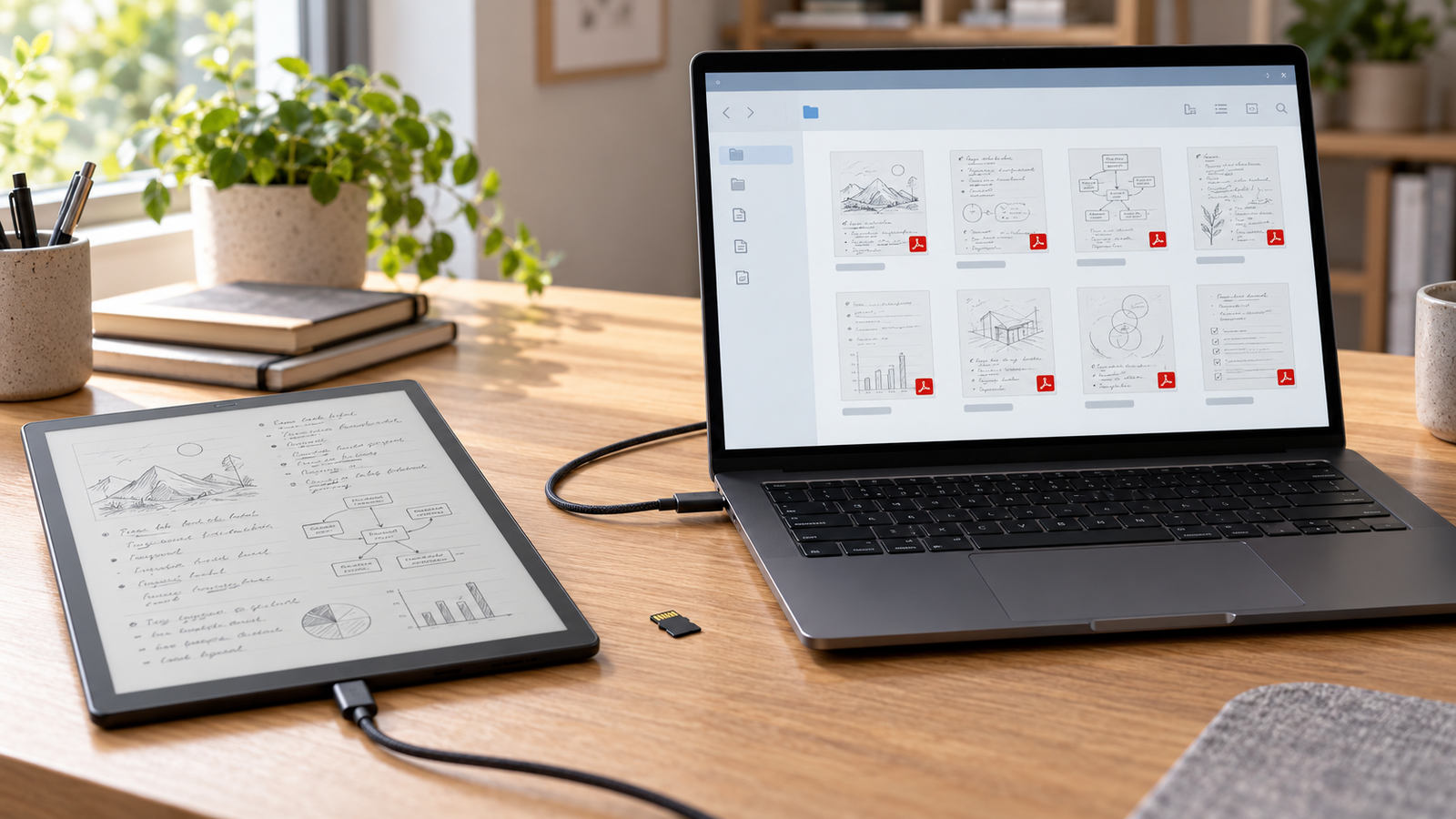
Some devices let you export straight from the tablet over a USB cable. Others route every export through the company’s cloud, an email link, or a companion app. If the export path itself depends on the company, a shutdown can close it.
Can anything other than the company’s software open the native file?
Every major brand stores notebooks in its own format to preserve layers, pen pressure, and editability. The question is whether those files stay useful once the company’s software is gone. Sometimes enthusiasts have built tools that read them; often, nothing outside the official app can.
Put those answers together, and the picture gets clear quickly:
| Scenario | Risk level | What survives a shutdown |
|---|---|---|
| Stored on the tablet, with regular open-format exports | Low | Your notes, readable anywhere |
| Stored on the tablet in a proprietary format only | Medium | Your notes, but possibly only on that tablet |
| Synced to the cloud, with a local copy on the tablet | Medium | The local copy, as long as the tablet keeps working |
| Stored only in the cloud | High | Whatever you exported before the deadline |
Proprietary Formats Versus Open Formats
Native notebook files keep everything (layers, editable strokes, links, templates, and tags), but only inside the company’s ecosystem. Open formats travel well, but each gives something up:
| Format | Opens elsewhere? | Keeps handwriting? | Searchable? | Editable? |
|---|---|---|---|---|
| Yes, almost anywhere | Yes, usually flattened | Only if text was converted | Annotate only | |
| PNG / JPG | Yes | Yes, as an image | No | Image editing only |
| SVG | Yes, in vector software | Yes, as vector strokes | No | Yes, strokes can be edited |
| TXT / DOCX | Yes | No, converted text only | Yes | Yes |
| Native notebook file | Rarely | Yes, fully | Inside the app | Yes, inside the app |
Most exports lose some of these: layers, links between pages, tags, handwriting search, templates, pen-pressure data and audio recordings. A PDF of your notebook is a faithful photograph of it, not the notebook itself.
How the Major Platforms Handle It
These summaries are based on each company’s documentation, checked in October 2026. Features change with updates, so check your own device too. For broader differences, see Einkopedia’s comparison of how the major platforms differ.
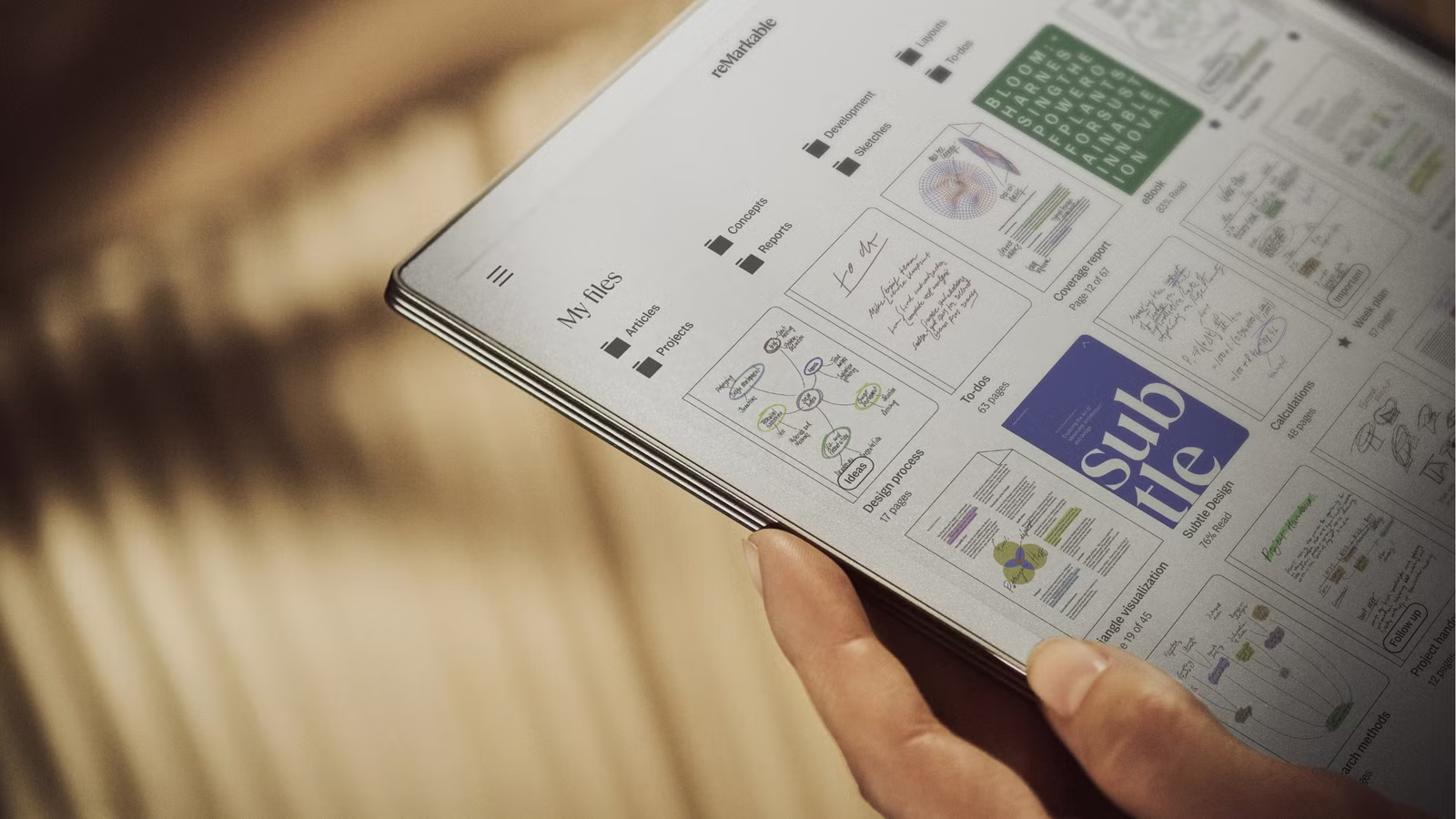
reMarkable
reMarkable’s own guidance states that cloud pairing is optional and that you can use the tablet offline, storing documents only on the device. Notes always live on the tablet itself.
Notebooks export as PDF, PNG or SVG through the desktop app, email, cloud drives or a USB web interface that works over a cable. Without a Connect subscription, files not synced for more than 50 days drop out of the apps but stay on the tablet. Deleting your reMarkable account permanently deletes its cloud data.
- Biggest strength: offline use without pairing, plus USB export in open formats, including vector SVG.
- Biggest weakness: the native format is proprietary. Community tools can read recent versions, but nothing official does.
Supernote
Supernote treats its cloud as one option among several. Files can be copied to a computer by USB cable, transferred over local Wi-Fi in a browser, or synced with Supernote Cloud, Dropbox, or Google Drive, and notes export as PNG, PDF, TXT, or DOCX.
Supernote has also gone further than most: its Private Cloud lets owners run the sync service on their own hardware, such as a home NAS, though setup takes some technical skill.
- Biggest strength: several cloud-free routes, including self-hosting.
- Biggest weakness: the native .note format is proprietary. Community tools exist, but they’re unofficial.
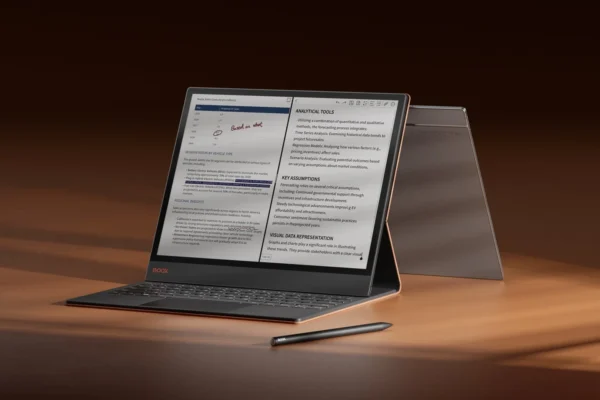
BOOX
BOOX tablets run Android, so notes live on internal storage, and many models take microSD cards. BOOX lists PNG, PDF, and .note as export formats, alongside its own cloud and third-party sync services.
- Biggest strength: an open Android file system, with a wide choice of cloud services and file managers.
- Biggest weakness: features and menus vary between models and software versions, so each device needs checking individually.
Kindle Scribe
Kindle Scribe notebooks sync to your Amazon account and appear in the Kindle apps, but they use a proprietary format that can’t simply be copied over USB. Exports arrive as Amazon download links that expire after seven days, with an optional searchable PDF. Scribe models released in 2025 or later can also send notebooks to Google Drive, OneDrive, or OneNote.
- Biggest strength: automatic sync to an account most owners already have.
- Biggest weakness: almost every export path depends on Amazon’s services.
Kobo
Kobo’s stylus-compatible readers (Sage, Elipsa, Elipsa 2E and Libra Colour) export notebooks to Dropbox, Google Drive or a computer over USB, as PNG, JPEG or PDF for basic notebooks and DOCX, text or HTML for advanced ones. Notebooks also sync to Kobo.com for viewing.
Kobo’s notebook guide includes one warning worth repeating: signing out of your Kobo account or resetting the e-Reader deletes your notebooks. Keep them synced or exported first.
- Biggest strength: exports to a computer over USB in both handwriting and text formats.
- Biggest weakness: a sign-out or reset removes notebooks from the device.
Smaller and newer brands
Newer brands sometimes offer impressive hardware at tempting prices, but their documentation can be thin and their track record short. Thin documentation is itself a risk factor. If the support pages don’t explain how to export without the company’s cloud, test it yourself before trusting the device with anything important.
At a glance
| Platform | Works without the cloud | Local file access | Open-format export | Exports need company services | Subscription involved |
|---|---|---|---|---|---|
| reMarkable | Yes | USB web interface | PDF, PNG, SVG | Not for USB export | Connect (optional) |
| Supernote | Yes | USB, local Wi-Fi | PNG, PDF, TXT, DOCX | No | No |
| BOOX | Yes | Android file system | PNG, PDF | No | Not for core export |
| Kindle Scribe | Partly | No direct notebook access | PDF, searchable PDF | Yes | No |
| Kobo | Yes | USB export folder | PNG, JPEG, PDF, DOCX, TXT, HTML | No | No |
What Keeps Working When the Cloud Goes Dark
If a company’s servers go offline, your tablet doesn’t stop working.
What usually keeps working:
- Writing and reading on the device
- Opening files already stored locally
- Exporting from the device itself, where that option exists
- USB access, on devices that offer it
What may stop:
- Sync between your tablet, phone, and computer
- Editing notes in companion apps
- Handwriting recognition and conversion, if they run in the cloud
- AI summaries and other server-based tools
- Template stores and third-party integrations
- Firmware updates, repairs and battery replacements
A tablet’s hardware and software lifespans run on separate clocks. The screen may work for years after updates stop, but nobody will fix bugs, patch security holes, or replace a worn battery.
Subscriptions Add a Second Layer of Dependency
Several companies charge for cloud storage, app editing, handwriting search, or AI tools. That isn’t sinister; subscriptions fund development, and many owners find them worthwhile.
What matters is knowing which habits depend on one. If you edit notes on your phone only because you pay for a plan, a lapsed payment or a discontinued plan changes how you work. Your notes may still sit safely on the tablet; it’s the convenience you’re renting.
Before subscribing, check what happens to your files if you stop paying, and whether exporting depends on the plan.
Community Tools: An Escape Hatch, With Caveats
Enthusiasts have written open-source tools that read some native formats, including reMarkable’s recent files and Supernote’s .note files, and convert them into PDFs or images.
They can be genuinely useful in a pinch, but they’re unofficial. They can break after a software update, depend on volunteers, may affect your warranty or a company’s terms of service, and often need a command line.
The official export you make today is far more dependable than a community tool you might need tomorrow.
The More Likely Risks Have Nothing to Do With Shutdowns
Closures are rare. These are far more common, and the same habits protect against them:
- Your account is suspended, compromised, or accidentally deleted.
- The tablet is lost, stolen, dropped, or simply dies.
- You delete a notebook by mistake, and sync removes it everywhere.
- Your employer manages the device and restricts cloud services or wipes it when you leave. If this applies to you, see Einkopedia’s advice on choosing an E Ink tablet for work.
- You sell or give away the tablet and forget what was on it.
Back up for these, and a company shutdown becomes an inconvenience rather than a crisis.
How to Build a Notes Workflow That Survives Any Company
The aim is simple: no single company, account, or device should hold your only copy.
Adapt the 3-2-1 rule for notes
- 3 copies of anything important
- 2 kinds of storage, such as the tablet and a computer
- 1 copy outside both the device and the vendor’s cloud, such as an external drive or a cloud service the company doesn’t run
Export on a schedule
A backup made once is out of date within a month. Monthly suits heavy note-takers and quarterly suits occasional use. Put it in your calendar.
Keep the native file and an open copy
Keep the native notebook file, so you can keep editing on a compatible device, and a PDF or image export, so you can read it on anything.
Name things so they make sense outside the tablet
“Notebook 14” means nothing on your laptop. Use names you’ll understand in five years, such as “2026-10 Client X kickoff,” with the date first so files sort in order.
Convert what matters most into text
Handwriting-to-text conversion turns important notes into something every app can search and edit. It’s rarely perfect, so check names, numbers, and dates in anything you convert, and keep the handwritten original alongside it.
Notes only pay off when they reach the rest of your work, a point Einkopedia makes in its look at what happens after the handwritten page.
Test a restore
Almost everyone skips this step. Open your exports on a computer that has never had the company’s software installed. If they open cleanly, your backup works. If they don’t, you’ve found the problem while there’s still time to fix it.
The 15-Minute Lock-In Audit
You’ll need your tablet, a computer, and a USB cable.
- Find where your notes are stored: the tablet, a memory card, a cloud, or several of these.
- Turn off Wi-Fi. Confirm you can still write, open existing notebooks, and export.
- Export one notebook as a PDF, and the same notebook in another format your device offers, such as SVG, DOCX, or text.
- Open both exports on your computer, ideally without the company’s app installed.
- Note what the exports lost. Check for layers, links, colors, tags, and handwriting search.
- List which features depend on a subscription or account.
- Set a recurring reminder for your next export.
| Check | Pass / Fail | Notes |
|---|---|---|
| Notes stored on the device | ||
| Works offline | ||
| PDF export opens elsewhere | ||
| Second-format export opens elsewhere | ||
| Export works without the company’s cloud | ||
| Subscription dependencies known | ||
| Next export scheduled |
If every row passes, you’re in good shape. A fail isn’t a disaster; it shows you what to fix next.
Should Portability Change Which Tablet You Buy?
For some buyers, it should. Portability matters most for professionals with client notes, researchers, journalists, long-term journalers, and anyone in a regulated industry. For others, a smooth cloud experience may matter more, which is reasonable as long as it’s deliberate.
Either way, ask these questions before you buy:
- Can I set it up and use it without an account?
- Can I export notes in open formats directly from the device?
- Can I reach my files over a USB cable?
- Which features depend on a subscription?
- Is the native notebook format documented, or readable by other tools?
- Has the company given generous notice and export windows when changing services before?
No device scores perfectly on every point. For a wider pre-purchase checklist, see what to check before buying.
Disclosure: The box below contains affiliate links. If you buy through them, Einkopedia may earn a commission at no extra cost to you. As an Amazon Associate, Einkopedia earns from qualifying purchases.
Three tablets with different approaches to keeping your notes portable
- Supernote Manta: for local-first control. USB and Wi-Fi transfers, PNG, PDF, TXT and DOCX export, and an optional self-hosted cloud. Limitation: proprietary native format; pen sold separately. No subscription needed. View at the official Supernote store
- reMarkable Paper Pro: for open export formats. Works offline without pairing, with PDF, PNG and SVG export over USB. Limitation: long-term cloud sync and app editing need a Connect subscription. View at Amazon
- BOOX Note Air6 C: for open file access. An Android file system, microSD storage and your choice of cloud services. Limitation: menus vary between software versions. No subscription needed for export. View at Amazon
Edge Cases Worth Knowing About
Buying a used tablet. Make sure the previous owner has removed it from their account and reset it.
Older models without updates. They often keep working for years. Export regularly anyway, because the manufacturer may no longer repair them.
Confidential client notes. Check whether your employer or clients allow third-party clouds. Local exports to encrypted storage may be safer.
Very large archives. Exporting years of notebooks takes time, especially by email or Wi-Fi, so start early and work in batches.
If something happens to you. Notes locked to one device and account may be impossible for family to reach. A shared folder of exports, or a note in your estate documents, solves that.
Frequently Asked Questions
What would happen to my reMarkable notes if reMarkable shut down?
Your notes are stored on the tablet, and reMarkable says it can be used offline without pairing. Cloud sync, the apps, and subscription features would likely stop. The best protection is to export important notebooks now as PDF, PNG, or SVG, through the USB web interface, desktop app, or email, and keep those copies on your own storage.
Can I use a Supernote without its cloud?
Yes. Supernote documents several cloud-free routes: copying files over a USB cable, transferring them over local Wi-Fi through a browser, or running Supernote’s Private Cloud on your own hardware. Its official cloud, Dropbox, and Google Drive are all optional. Exports to PNG, PDF, TXT, and DOCX happen on the device itself.
Can I export Kindle Scribe notebooks without Amazon’s cloud?
Not easily. Scribe notebooks use a proprietary format that can’t simply be copied over USB, and sharing routes go through Amazon’s services. Email exports arrive as download links that expire after seven days, so save each file as soon as it arrives. Scribe models from 2025 onward can also send notebooks to Google Drive, OneDrive, or OneNote.
What’s the most future-proof format for handwritten notes?
PDF is the safest bet for readability, because almost every device and operating system can open it. If you want to keep editing strokes in other software, SVG preserves them as vector lines. For searchable, editable text, TXT or DOCX work best. Many careful owners keep a PDF alongside the native file for important notebooks.
Does sync count as a backup?
No. Sync keeps copies identical, so a notebook you delete on the tablet can disappear from the cloud and your other devices too. A backup is a separate copy that doesn’t change when the original does. Use sync for convenience, and keep a periodic export on a computer or drive that sync can’t touch.
Can I open proprietary notebook files on a computer?
Usually only with the company’s own app. A few community-built tools can read some formats, including recent reMarkable files and Supernote’s .note files, but they’re unofficial, can break after updates, and often need technical skill. Don’t rely on them as your only route. Keep an open-format export of anything important too.
How often should I export my notes?
Monthly suits anyone who writes on their tablet most days, and quarterly is enough for occasional use. Export immediately after anything you’d hate to lose, such as an important meeting, a finished project, or exam notes. The best schedule is the one you’ll actually keep, so put it in your calendar.
What happens to my notes if my subscription ends?
It depends on the company. With reMarkable, for example, notes stay on the tablet, but files not opened and synced for more than 50 days stop syncing to the apps, and app editing ends. Check your own service’s terms before cancelling, and export anything stored mainly in the cloud first.
Is converting handwriting to text enough of a backup?
Not on its own. Conversion turns notes into searchable, editable text, but it can misread words, especially names and numbers, and it drops diagrams, sketches and layout entirely. Treat text as a useful extra copy, and keep a PDF or image export of the original handwriting so nothing is lost in translation.
Should I avoid smaller E Ink brands?
Not necessarily. Smaller brands can offer excellent hardware. Just test their export options before trusting them with important notes. If you can export to open formats over USB without an account, the brand’s size matters far less. If you can’t find clear documentation about exporting, treat that as a warning sign.
Your Notes Are Only as Safe as Your Last Export
Go back to that Monday morning. Two owners get the same email. One exported everything last month and shrugs. The other never did and is now racing a 90-day deadline. The difference isn’t luck. It’s ten minutes on a calendar.
Your notes are only as safe as your most recent independent copy. Open formats outlive companies. And a monthly export is the cheapest insurance you’ll ever buy.
Run the 15-minute audit today, then tell us in the comments which tablet you use and what your export kept or lost.
If you’re choosing a new device and portability matters to you, compare the best current E Ink tablets with these questions in mind.